
Creating screens is one of the first steps in setting up your NowSignage account. Choosing a clear, consistent naming convention from the start makes each screen easier to identify and manage as your digital signage estate grows.
This guide explains the benefits of consistent screen naming and provides practical examples and recommendations to help you develop a convention that works for your estate.
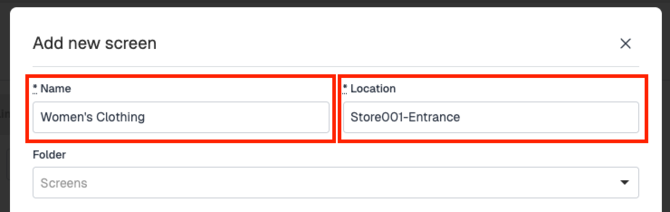
NowSignage uses two key identifiers: screen name and screen location. The search bar in the Screens area searches both fields, so use clear, meaningful details to help you find the screens you need.
-
RECOMMENDATIONS AND EXAMPLES:
Screen Name:
Use the screen name to describe useful details such as its type, size, orientation or content purpose. Choose a consistent format that makes each screen easy to identify and manage.
Examples include:
-
“4K-Portrait”
-
“MenuBoard-A”
-
“InternalComms”
-
“Women’s Clothing”
-
“Baby Aisle”
-
“Left Drive Thru”
-
“Right Food to Go”
Location:
Include a location name and site number, such as “New York 001”.
Where useful, add the screen’s position within the site, such as “NY-HQ-Lobby” or “Store001-Entrance”.
💡TIP: To group screens for content targeting, use targeted tags rather than relying on screen names or locations.
-
SCREEN FOLDER STRUCTURE
Folders in the Screens area help you organise your digital signage estate and manage settings across groups of screens. Use folders to:
⚠️Please note: Folders are not unique identifiers and do not replace the screen name and screen location fields.

Get a clearer overview of your estate. Group related screens so they are easier to find and manage.
- Apply time zone settings in bulk. If your project spans multiple time zones, group screens by time zone and apply the appropriate setting at the folder level using the 'Advanced Settings' rather than updating each screen individually. See our timezone guide for details.
- Manage codec settings by hardware type. Different hardware may require different codec settings. Group screens with the same requirements to apply these settings at folder level rather than updating each screen individually. See our codec settings guide for details.
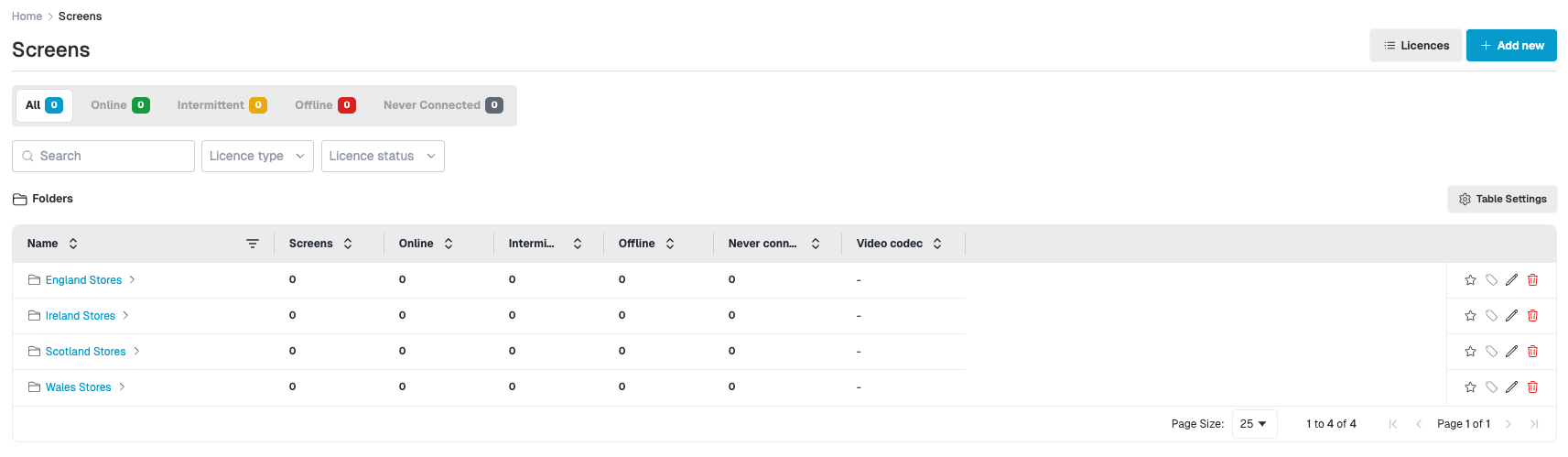
FOLDER EXAMPLES
Choose a folder structure that reflects how you manage your estate, and use subfolders to organise screens in more detail. For example:
- By country: Create folders for England, Scotland, Wales and Northern Ireland, then add subfolders for regions or counties, such as North and South, to reflect your marketing groups.
- By use case: Group screens under Digital Menu Boards, Drive Thrus or Order Ready Boards.
- By franchisee: Use the franchisee’s name and number to identify each folder.
- By retail area: Organise screens under Food to Go, Beer/Wine/Spirits, Clothing or Home.
For consistency, you can use the same folder structure across content, playlists and schedules. Alternatively, choose a different structure for each area if it better suits how your team works.
💡TIP: Choose screen names that make sense to everyone who manages or supports your digital signage estate, including content managers, IT administrators, and support and maintenance teams. Each team has different responsibilities, but all need to identify the correct screen quickly. Clear, consistent names help them update content, schedule media to the right location and troubleshoot issues more efficiently.
-
CONTENT:
Consistent asset names and folder structures help your team upload and find content more efficiently, reduce errors and keep reporting clear. We recommend agreeing on a shared ‘content mapping’ process that defines how all users name, organise and archive content.
- Create a shared folder structure. Organise folders by region, content type or time period, and make sure everyone follows the same approach.
- Create an archive folder. Move content and folders that are no longer in use into a clearly labelled “Archive” folder. - Archiving unused content is particularly useful for estates with thousands of screens, helping your team keep active content easy to find.
- Use a consistent asset naming format. Choose descriptive names that make each asset easy to identify in your content library and reports. Avoid vague filenames such as “video1.mp4” or “christmas_final_edit.jpg”.
For example, use the format “[Location]-[ContentType]-[Campaign]-[Date].ext” to create filenames such as “NE-Video-SpringPromo-Oct2026.mp4”.
💡TIP: Keep asset names short and descriptive so they are easy to recognise when adding content to playlists or reviewing reports. NowSignage allows a maximum of 60 characters per asset name. Give each asset a distinct name to avoid confusion and reduce errors.
-
Summary and Best Practices:
Apply clear, consistent naming conventions across your folders, screens, schedules, playlists and assets to support:
- Clarity and organisation: Help your team understand each screen’s purpose, location and associated content, reducing confusion and errors.
- Scalability: Keep your estate manageable as it grows from a few screens to hundreds or thousands across multiple locations and time zones.
- Auditing and reporting: Make screens and content easier to identify when reviewing playback, screen status and compliance reports.
- Troubleshooting and maintenance: Help support teams quickly identify the correct device and its physical location when a screen goes offline or displays incorrect content.