
Overview:
The Overrides feature provides a way to take control of screen content on demand, temporarily replacing scheduled playlists with priority content when required. This can be used for urgent communications, special announcements, or one-off promotional campaigns, ensuring that important messages are displayed at the right time without needing to adjust the core scheduling.
Overrides can be configured as either one-off events or recurring actions (e.g. every 5 minutes). When triggered, they will interrupt the scheduled playlist and force the override content to play, which means they may cut into content that is already running on the screen. The override will remain active until it is cleared or set to expire, providing flexibility to manage ad-hoc or repeated content interruptions.
⚠️ Please note - Overrides are only compatible on version 5.0.20+ of the NowSignage application
Text Posts: Require app version 5.3.31+ to function on screens.

How to enable an override:
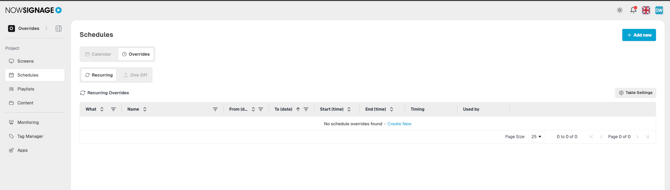
1. Within your NowSignage project, click into 'Schedules' and then select 'Overrides':
-
Recurring – Plays between a defined start and end date.
- One Off – Plays once at a single specified date and time.
2. Click '+Add New' and then select the content type you wish to override your schedule with. This can either be an image, video or a full playlist:
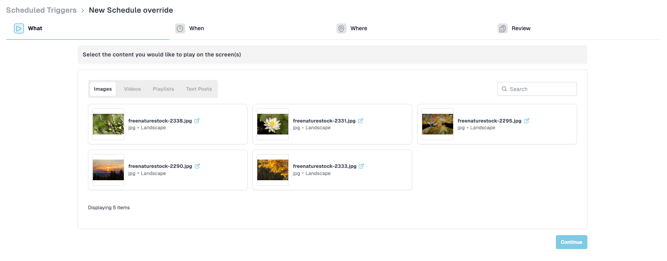
- Images
- Videos
- Playlists
- Text Posts (New April 2026 - Requires app version 5.3.31) - Enables display of text-based override content created in the CMS
3. Once you’ve chosen your content, scroll down to the ‘2. When’ section to configure the timing options for your override.
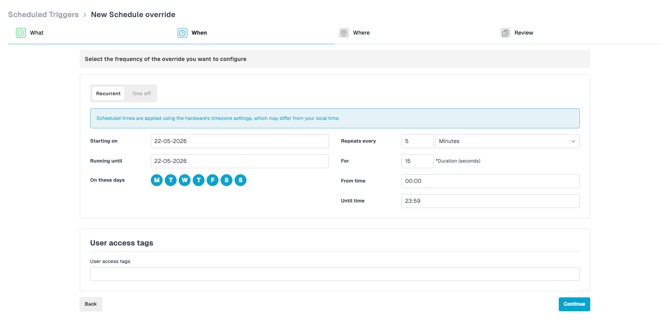
Override Type – Choose whether the override should be ‘Recurring’ or ‘One Off’.
Starts From Date until End Date – Set the date range for your override, then choose which days it should run (all days are selected by default, but you can click any day to remove it).
Every X (Minutes/Hours) – Configure how often the override repeats by selecting minutes or hours and entering the desired interval.
From (First Override) – Set the time of day when the first override should start (defaults to 00:00 if left unchanged).
Duration (Seconds) – Only adjust this if you are using a single image override. For video or playlist overrides, this will auto-populate with the full video or playlist duration.
Last Override – Optional. By default, this is set to ‘end of the day’, but you can change it if you want the override to only run within specific hours.
⏰ Caution: Scheduled times are applied using the project’s timezone settings, which may differ from your local time.
4. When you’re satisfied with your configuration, scroll down to the ‘3. Where’ section:
In this section, choose the screens you want the override to apply to (you can use the search bar to find screens by name), then click the ‘+’ button next to each screen to add it.
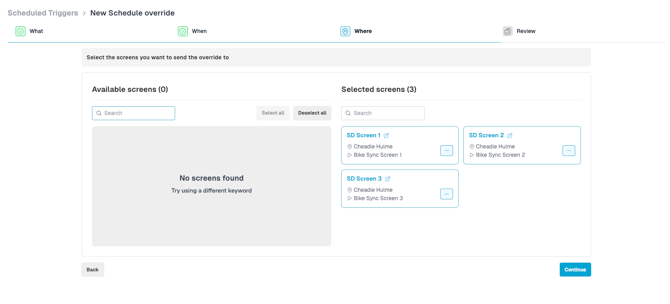
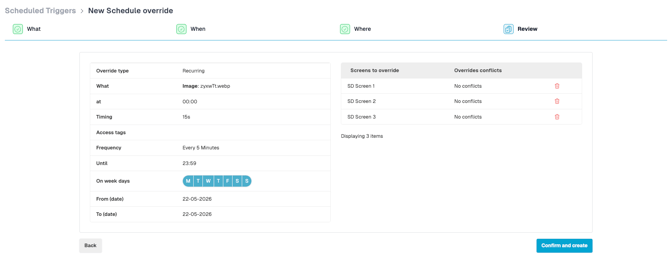
Once you’ve chosen your screens, click ‘Create’ to finalise the override. You’ll then see a confirmation screen where you can review the details, and when you’re happy, click ‘Confirm and create’.
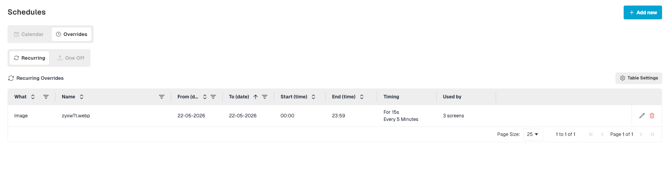
5. Once your override is created, you can view, edit, or delete it from the ‘Overrides’ tab, which shows a full list of all overrides in your project.
⚠️ Overrides do not take effect instantly. The content must first download to each screen, which typically takes around 5 minutes. As best practice, schedule your override at least 10 minutes in advance. Overrides will also trigger in offline mode (using the device’s own date and time), but the screen must be online initially to download the override rules and content.