
This article explains how to use Remote Device Management (RDM) in NowSignage, including which platforms and app versions support each feature, what commands are available for each device type, how commands are processed, and how to interpret action log statuses. It also outlines any installation requirements, version dependencies, and platform-specific limitations, so you can understand what to expect before sending commands from the dashboard.
⚠️ Important Information ⚠️
-
CMS Update (no app update required, although a minimum app version 5.2.60 is required to fully utilise supported RDM commands) - Please ensure your screen estate is updated to the latest available application version.
- CMS Release Date: 20/7/26.
- Supported Platforms:
- Global (secure.nowsignage)
- Middle East (ME) - (ap-southeast-1)
⚠️ Remote Device Management access is provided via the Monitoring tool area (Project and Screen level)
Please review 'Screen monitoring' knowledge for more information.
Summary: Default access.
-
Account Owners:
-
Access to project-level Monitoring ✅
-
Access to Screen-level monitoring ✅
-
-
Project Managers
-
Access to Screen-level monitoring ✅
-
Access to Project-level monitoring ❌
-
-
Other Roles ❌ (no access to either unless a custom role has been created)
⚠️ IMPORTANT:
Ensure your hardware is running the latest firmware version recommended by the manufacturer. Some firmware versions may prevent RDM commands from completing successfully.
Current Known Limitations:
-
Samsung Tizen 7: Firmware 1050.8
-
RDM Upgrade command not supported
-
-
Overview of the Remote Device Management Dashboard
The Remote Device Management area of the NowSignage dashboard provides powerful tools for controlling, monitoring, and updating your digital signage devices remotely.
Within this interface (device-dependent), you can:
-
Reboot a device
-
Update to the latest NowSignage application
-
Capture screenshots
-
Set On/Off timers
- Adjust Volume and screen brightness
-
Monitor command logs and statuses
1. RDM Commands by Device/OS Type
Operating system |
Available RDM commands (v5.2.60) |
|---|---|
Android
|
|
LG WebOS 6.0
|
|
Samsung Tizen 6.5, 7.0
|
|
Samsung Tizen 4.0, 5.0
|
|
Windows
|
|
macOS
|
|
Linux
|
|
BrightSign 5
|
|
Sony Bravia
|
|



2. ⚠️ Remote Device Management Application Installation:
Depending on the device operating system (OS), an additional NowSignage RDM application may need to be installed on the device. Please ensure to review our specific OS guides using the links below:
- Android – RDM app installation required = YES - Get the latest NowSignage Android RDM app: knowledgebase.nowsignage.com/android-remote-device-management-rdm
- LG WebOS 6.0 - RDM app installation required: NO: knowledgebase.nowsignage.com/lg-webos-remote-device-management-rdm
- Samsung Tizen - RDM app installation required = NO
- Windows - RDM app installation required = NO
- MacOS - RDM app installation required = NO.
- Linux - RDM app installation required = NO.
- Sony Bravia - RDM app installation required = NO:
knowledgebase.nowsignage.com/sony-bravia-remote-device-management-rdm
3. Unsupported Functionality Warning
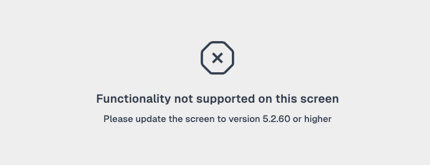
If a device does not meet the required version or platform capabilities, the following message appears when accessing the Remote Device Management menu:
This occurs when:
-
The device is online but running an older NowSignage version
-
The device does not support RDM commands
-
RDM is not yet enabled for that operating system
4. RDM Command Processing Logic
Previous NowSignage RDM versions sent commands immediately.
NowSignage App Version 5.3.20+ introduces a queued system using a standard 5-minute polling interval.
How Commands Work:
-
You issue a supported command from the dashboard.
-
It enters Pending state.
-
The device checks in during its next poll (every 5 minutes).
-
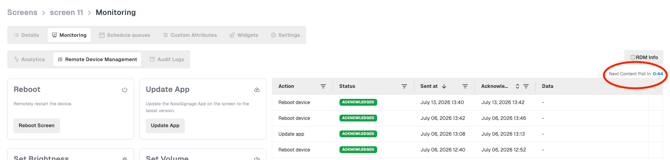
The interface will display a 5-minute counter – Next Content Poll In xx:xx)
-
-
The command becomes 'Acknowledged' once received.
Benefits
-
Ensures offline devices still receive commands when the device re-establishes a connection to the NS application
-
Prevents network congestion
-
Stabilises large deployments with hundreds of devices
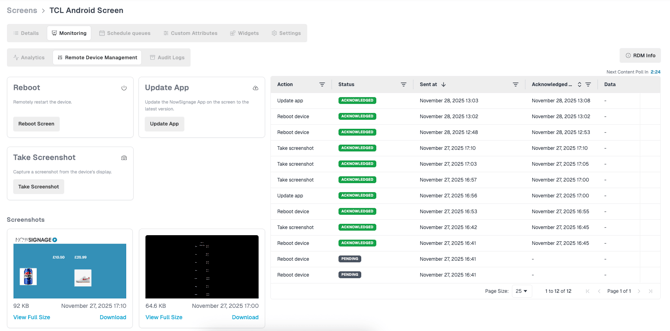
5. RDM Interface Overview
- To access RDM commands for a screen
- Click into the screen name from the main screen's area
- Select 'Monitoring' from the menu options
- Select 'Remote Device Management' from the menu
This will open up the RDM interface and display the available RDM commands based on the operating system being used.
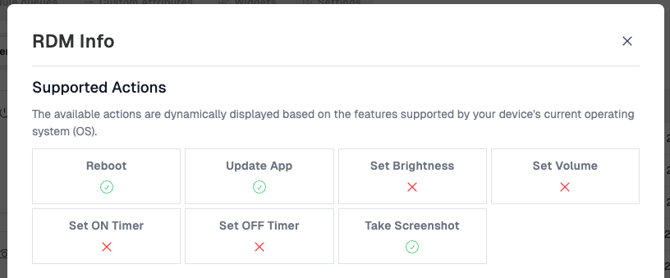
RDM Info: Clicking this option will display all of the supported RDM commands for your hardware, which will be reflected in your RDM interface.

6. Action Log
On the right side of the interface, you’ll find the full log of commands sent to the device.

It displays:
-
RDM command (Action)
-
Status (Pending/Acknowledged)
-
Sent time
-
Acknowledged time
Understanding Status Types
Action Log Status
The status of the action log is dynamically displayed based on the action performed and the result of the action.
✔ Acknowledged
This status confirms that the remote screen has successfully received and processed the requested action. This does not mean the action has been executed successfully on the device. Unlike the "Pending" status, once an action is "Acknowledged", it can no longer be cancelled from the platform, as the device has already applied it.
- The device has received the command and attempted to execute it.
- This does not guarantee the command was successfully completed on the hardware.
- Acknowledged commands cannot be cancelled.
⌛ Pending
This status indicates that an action (e.g., an app update, a reboot, or a configuration change) has been requested for the remote screen. However, the action has not yet been received or executed by the device. At this point, the action is in a queue and can still be cancelled if necessary.
- The command has been queued and is waiting for the next poll.
- Pending commands can be cancelled.
7. RDM COMMANDS: (Based on Supported OS)
The available actions are displayed based on the features supported by your device's current operating system (OS)
⚠️ Important: NowSignage will pull device-level analytics that will determine the available RDM commands. If hardware is changed, then please allow up to 15 minutes for the analytics to update to ensure accuracy of the commands.
-
RDM Command: Reboot Device
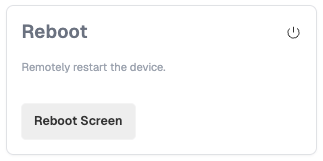
- Action: Use this to remotely restart
-
The physical device (Android, LG, Samsung Tizen)
-
The NowSignage app only (Windows, macOS)
-
RDM Command: Update App
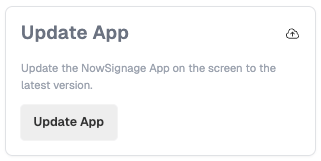
- Action: Triggers an update to the latest NowSignage version where supported.
-
RDM Command: Take Screenshot
- Action: Captures what’s currently displayed on the device.
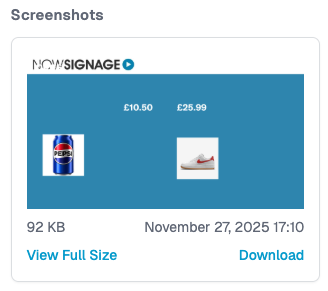
Screenshots appear in the Screenshots panel, including timestamp and file size. Useful for confirming what is playing on the screen following an update.
⚠️ The snapshot is taken during the standard 5-minute polling window – it is not at the time the command was triggered.
You can:
-
View full size
-
Download
-
Review historical screenshots
-
RDM Command: Set Brightness
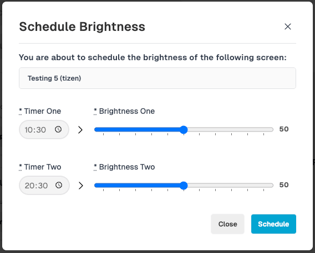
- Action: Adjusts the display’s brightness remotely.
This command lets you increase or decrease the screen’s backlight level without needing physical access to the device.
Useful for:
-
Reducing brightness in low-light environments
-
Saving energy during off-peak hours
-
Correcting screens that appear too dim or too bright
-
RDM Command: Set Volume
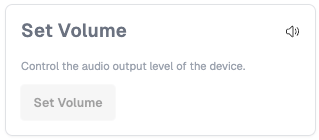
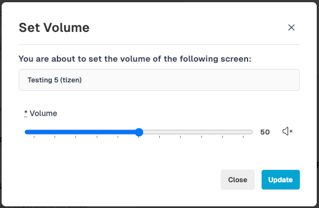
- Action: Controls the device’s audio output level.
This allows you to remotely increase, decrease, or mute audio being played through the device.
Common use cases:
-
Ensuring content is audible in busy environments
-
Lowering volume in quiet zones
-
Resolving audio issues without dispatching staff
-
RDM Command: Set ON Timer:
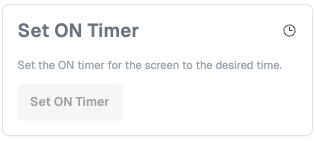
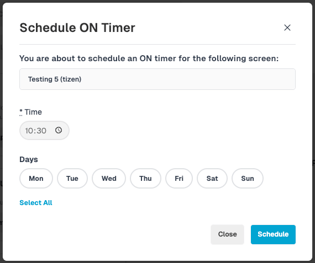
- Action: Schedules a specific time for the device’s screen to automatically turn on each day.
This is a hardware-level timer (not a playlist feature), allowing full automation of daily screen activation.
Typical usage:
-
Powering screens on at store opening
-
Coordinating screen schedules across multiple locations
-
Reducing manual intervention for daily startup
-
RDM Command: Set OFF Timer:
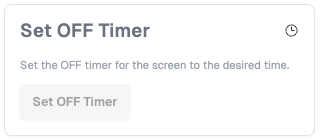
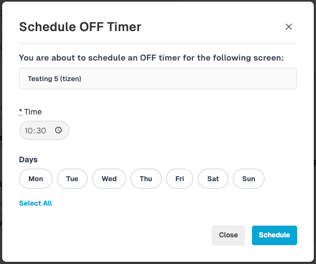
- Action: Schedules a daily time for the device’s screen to automatically turn off.
This helps extend hardware life and reduce power consumption.
Ideal for:
-
Powering down after store closing
-
Ensuring screens turn off overnight
-
Preventing screens from running 24/7 when not required
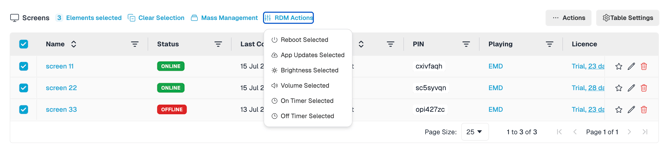
8. RDM Mass Management Commands:
As part of NowSignage mass-management tools, supported RDM commands can also be triggered in bulk from the main Screens menu. Simply select the required screens, click **RDM Actions**, and choose the command you want to apply. - Available actions will depend on the operating systems and RDM capabilities of the selected screens.
⚠️ Advanced warning notice ⚠️
Some users may be familiar with the earlier RDM app plugin workflow that was made available through the App Store. This legacy RDM App Store plugin method is now being phased out and will reach end of life (EOL) at the end of 2026, after which it will be removed from the platform and no longer supported.
If you are still using this older method, we recommend planning your transition to the supported RDM workflow as soon as possible. Moving to the current RDM experience ensures continued access to supported commands, ongoing platform improvements, and the latest Remote Device Management functionality within NowSignage.
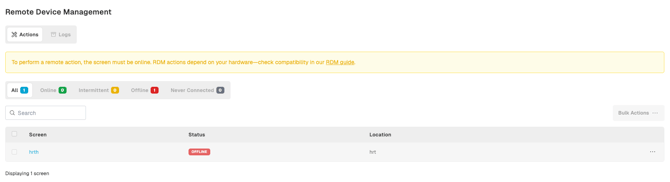
* Screenshots of the previous RDM app plugin:
Troubleshooting / QA
Q. - A user is unable to see the Project level RDM Monitoring area in the sidebar menu.
A. - Review and ensure the correct access permissions and User Access Tags have be applied. - Please Note: For security compliance, NowSignage is unable to amend user permissions. Please consult with the Account Owner for any required access permission reviews or changes.
Q. - My NowSignage application version data is displaying as Unknown.
A. - NowSignage screen analytics is available on application version 5.2.60+ - Please update your hardware to the latest app version.
Q. - The screenshot command is not taking a snapshot at the moment I triggered the command.
A. - The screenshot command will action in-line with the standard 5-minute polling window, not at the time the command was triggered.
📖 Further Reading:
-
How Remote App Updates Work (detailed explanation)
https://knowledgebase.nowsignage.com/nowsignage-rdm-how-remote-app-updates-work