
With NowSignage, you have full control over when and how your assets are displayed across your digital signage network. Whether you’re managing images, videos, or live streams, you can precisely schedule each asset to appear only during the exact periods you need. The asset scheduling feature lets you automate your playlists with flexible start and end times, ensuring content is always relevant and timely.
You can configure each asset with two key options:
1. Shown from: Define the exact date and time you want your asset to become visible on your screens.
2. Removed at: Set the moment your asset should automatically be taken down, ensuring your displays are always up to date.
⚠️ Caution: All scheduling is linked to your project’s designated timezone setting, ensuring consistent playback across locations.
To set up asset scheduling, start by creating a new playlist or selecting an existing one to edit. Within the playlist editing screen, locate your chosen asset on the right-hand panel. Click ‘add,’ and before finalising, adjust the ‘shown from’ and ‘removed at’ fields to select your desired display window. This allows you to build dynamic, time-sensitive playlists that align with your organisation’s content strategy.
⚠️ Important: Shown from date is applied using each screen’s timezone, which may differ from your local time.
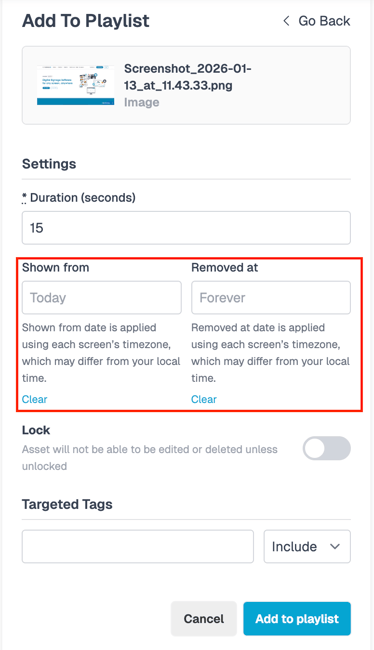
Simply click on either the "shown from" or "removed at" fields, and a calendar interface will appear, allowing you to select the exact date and time you’d like the asset to display. This flexible scheduling ensures each asset is shown only when it’s most relevant. Once your selection is finalised, click "add to playlist" to save these preferences—your asset is now scheduled and included in the playlist.
In the playlist view, the asset remains visible so you can easily review or adjust the scheduled dates and times at any point. It won’t become active on your screens until the scheduled "shown from" date and will automatically stop displaying once the "removed at" time is reached. This provides confidence that your digital signage will always stay current, with content appearing and expiring exactly as intended.
When an asset’s display period ends, it will be clearly marked with an ‘expired’ message within the playlist. For further transparency, you can hover over the clock icon to quickly view the exact date range during which the asset was set to display—making it simple to audit and manage all scheduled content.
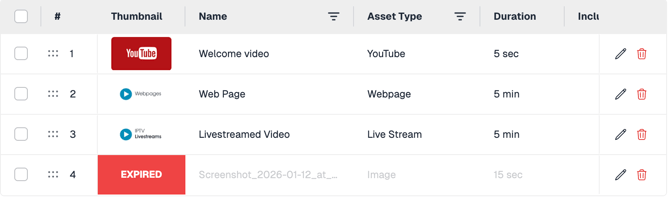
To fully remove this asset from your playlist, either click the red trash icon to delete it immediately, or leave it as is and it will automatically be removed after 24 hours.
FAQ & Troubleshooting:
Q. When I set a shown from-to date, does this get stored on locally on the device?
NO - NowSignage does not cache the dates/times in the playlist area to the hardware
Q. Will schedule changes still happen if my screen goes offline?
Schedules: Yes, on the latest NowSignage app version. The app pre-downloads up to two schedules: the one currently playing and the next one due to go live. If the next scheduled change is the one that's been downloaded, the switch happens on time even without an internet connection. On older app versions, the screen must be online when the schedule changes. Please update your devices to the latest version.
Important: Only one upcoming schedule is stored at a time. If a screen stays offline across more than one scheduled change, it can't switch to any schedule beyond the next one until it reconnects.
Individual asset dates (Shown from / Removed at): These are not cached on the device. The screen must be online, and it will pick up the change within the 5-minute polling interval after the date or time passes.