
These recommendations align with existing NowSignage asset guidance and are intended to supplement current best practices.
⚠️ Important
This is a recommendation guide, not a strict rule set. Performance and stability are dependent on multiple factors including hardware capability, operating system version, available memory, and how content is used within layouts and templates.
Key Principles
1. DPI Does Not Affect Screen Quality
DPI (dots per inch) is primarily a print-related concept and does not directly improve on-screen quality.
- Screens display images based on pixel dimensions, not DPI
- Exporting at higher DPI does not improve visual quality on screen
- Higher DPI values typically increase file size without providing any benefit for digital displays
Best practice
- Export images at no more than 96 DPI
- 72 DPI is sufficient for HD (1920 × 1080) digital signage output
2. Recommended Maximum File Size for HD Content
For HD (1920 × 1080) content:
- Recommended maximum image file size: 15 MB
- In most cases, significantly smaller files are preferable and achievable with no visible quality loss
- Larger files increase memory usage and decoding overhead on playback devices
While 15 MB is a safe upper boundary for HD images, best practice is to keep files well below this wherever possible to improve stability and reduce load on hardware.
3. Hardware, Network and Operating System Important Considerations.
Performance when handling large assets is influenced by multiple factors, including:
- The device hardware (CPU, GPU, RAM)
- The operating system (for example, Android TV or embedded SoC firmware)
- How images are decoded and rendered at runtime by the OS graphics stack
- Poor network connection can also impact how long it takes for a file to download
- The time required for a file to download can also be negatively affected by a weak network connection
Larger images require more memory and processing power to decode and render, even if they are displayed at a small size within a template. This can lead to:
- Slower playback
- Increased loading times
- Reduced stability
- In extreme cases, application crashes or device reboots
Recommended Best Practices
-
Image Resolution
-
Match image resolution to the actual on-screen size the asset will be displayed at
- Avoid using originals or print-resolution images inside templates
- Do not exceed 1920 × 1080 for HD screens unless 4K output is explicitly required and supported by the hardware
-
-
DPI
- Export at 72 DPI to 96 DPI maximum
- Avoid 300 DPI or print export presets
-
File Size Targets (Guidance)
These are typical real-world targets rather than hard limits:
-
- Full-screen HD images: aim for under 1–2 MB where possible
- Menu items or template images: aim for under 1–2 MB
- Logos and UI elements: aim for under 1–2 MB
Examples
Good Practice
- A image exported at 800 × 800, 72 DPI, 150 KB
- A full-screen HD slide exported at 1920 × 1080, 72 DPI, 800 KB
- Logos exported at 300 × 300 with transparency, 40 KB
These assets:
- Match their on-screen usage
- Load quickly
- Reduce memory pressure on the device
Bad Practice
- Uploading a 6000 × 4000 product photo for use in a small template tile
- Using 300 DPI print exports for on-screen content
- Reusing large brand pack images designed for print
- Uploading multi-megabyte images for small logos or thumbnails
These assets:
- Provide no visible improvement on screen
- Increase memory usage
- Increase the likelihood of performance issues on lower-powered devices
How to Export Your Content Correctly
Before designing your content, make sure your document is created at the correct size for screen use.
- Set the canvas size to match your screen resolution, for example 1920 x 1080
- Use RGB colour mode, not CMYK
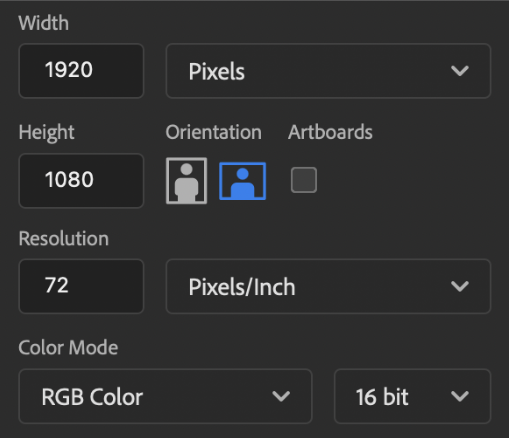
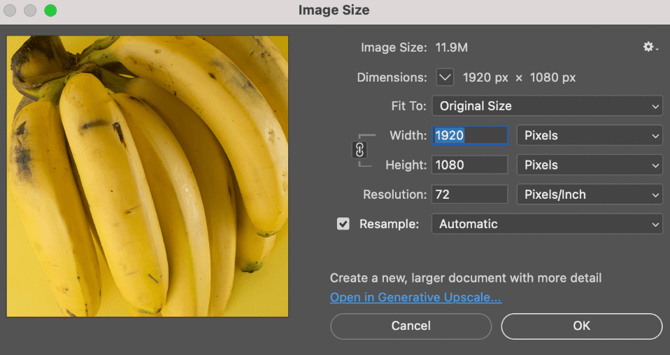
Step 1: Check your image size before exporting
Before you export, open your image size or document setting and confirm:
- Pixel dimensions are correct, for example 1920 x 1080
- Resolution is set to 72 DPI or 96 DPI maximum
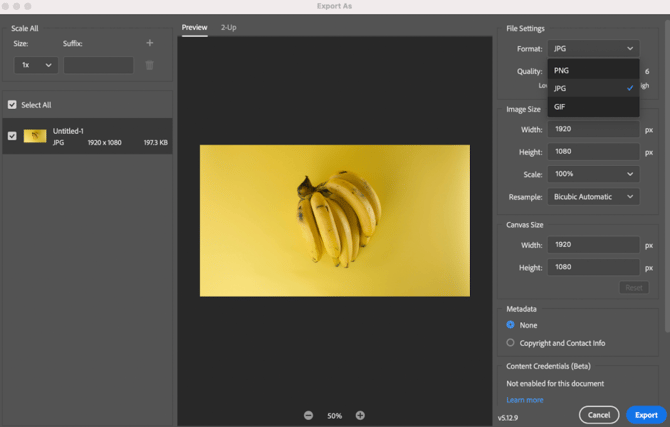
Step 2: Export in screen-friendly format
- When exporting your file: Choose JPG for standard images
- Choose PNG is transparency is required
- Avoid maximum or print quality presets
- Review final file size and reduce quality if file is unnecessarily large
Summary
- DPI does not improve on-screen quality. It is primarily relevant to print workflows
- Export images at 72–96 DPI
- Keep HD image files below 15 MB, with a strong preference for much smaller files
- Match resolution to real on-screen usage
- Larger files force hardware and operating systems to work harder, increasing the risk of instability
- Treat this as best-practice guidance rather than a fixed rule, as performance depends on device capability, OS version, and layout complexity