
Proof of Play (POP) – User Guide
Table of Contents:
-
Overview
Proof of Play (POP) provides clear, auditable reporting on exactly what content played, where it played, and for how long across your digital signage network.
Within the NowSignage platform, Proof of Play enables you to:
-
Verify content delivery
-
Measure campaign exposure
-
Analyse screen and asset performance
-
Export reliable playback data for reporting and compliance
Proof of Play data is automatically collected by supported devices and presented through interactive reports in the CMS.
Available on the following NowSignage platforms:
- EU/Global Platform ✅
- Middle East (ME) Platform ✅
- NowSignage App update required: Yes (version 5.3.20 or later)
- Feature Flagged: Yes - Access to proof of play reporting is managed by your NowSignage administrator. Please speak with your NowSignage representative to enable and configure Proof of Play access for your account.
-
Supported Devices
⚠️ Important: Proof of Play is available on devices running application version 5.3.20 or later.
- Please consult with our support team if you're unsure of what app version you have installed on your media player/s
Supported OS Platforms:
-
Android
-
Windows
-
Linux
-
macOS
-
LG webOS 6.0
-
Samsung Tizen 4 – Tizen 7
-
BrightSign Series 5
Not Currently Supported:
-
LG webOS 3.2 – 4.1
-
BrightSign Series 2, 3, and 4
⚠️ Devices that do not support the required application version will not generate Proof of Play data.
-
How Proof of Play Works
As content plays on a screen, the application records playback events in real time.
For each asset play, the following information is captured:
-
Asset name and type (image, video, dashboard, etc.)
-
Screen name
-
Project
-
Start time (based on the device’s local clock)
-
Duration played (tracked every second)
When an asset finishes playing, the completed record is stored locally on the device.
Every two hours, while online and running, the device securely uploads this data to the Proof of Play servers over port 443.
NowSignage Firewall Guidance:
- EU/Global Platform: knowledgebase.nowsignage.com/firewall-installation-requirements
- Middle East (ME) Platform: knowledgebase.nowsignage.com/firewall-installation-requirements-middle-east-server
Once processed, the data becomes available in the CMS for reporting and analysis.
-
Accessing Proof of Play Reports
Once Proof of Play has been enabled to your account by your NowSignage representative, the feature is located in the CMS under Reports.
To access it:
-
Open your project in the CMS
-
Select Reports from the left-hand navigation
-
Choose Proof of Play
-
Reports
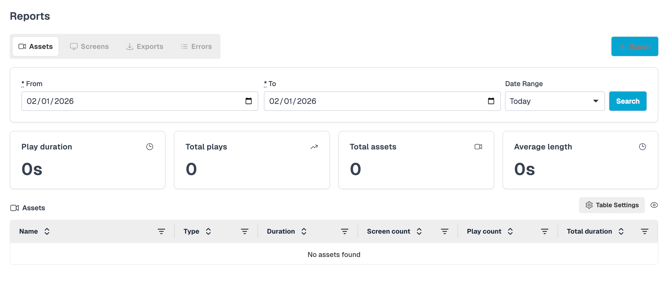
When the Proof of Play dashboard loads, it is organised into the following sub-menu views:
- Assets
- Screens
- Exports
- Errors
-
Date Range Selector
At the top of every report view, you can select a date range.
All statistics, charts, and tables reflect only the selected date range and remain consistent as you move between views.
-
Supported Content Types
The following asset types are included in Proof of Play reporting:
-
Images
-
Videos
-
Menu Board products
-
Google Traffic Maps
-
Weather widgets
-
Secure Dashboard screenshots
-
Power BI dashboards and reports
-
IPTV streams
-
YouTube videos
-
Social media templates
Content triggered by overrides, campaigns, screen sync, nested playlists, and weather rules is fully supported and recorded.
-
Assets Report
The Assets view focuses on how individual pieces of content perform across your network.

Key Statistics
-
Total Play Duration – Combined playback time of all assets
-
Total Plays – Number of times assets played.
-
Total Assets – Assets included in the report.
-
Average Length – Average asset duration.
Charts
-
Play Duration (Bar Chart) – Total time played per asset

-
Play Count (Bar Chart) – Number of plays per asset

-
Other Data: Asset Type Breakdown (Donut Charts) – Play count and duration by asset type
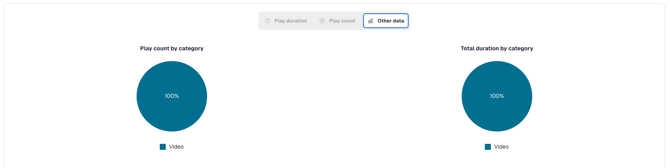
Tip: All charts support zooming; simply hover over a chart to drill down into more granular data.
-
Assets Table
The table provides detailed, sortable data, including.
-
Asset name and type
-
Duration
-
Number of screens
-
Play count
-
Total duration

Columns can be filtered, reordered, resized, or hidden to suit your reporting needs.
Further Reading: knowledgebase.nowsignage.com/ui-update-modern-table-view-for-screens
-
Screens Report
The Screens view shows how each screen in your project is performing.

Key Statistics
-
Total Play Duration – Combined playback time across screens
-
Total Plays – Total asset plays
-
Total Screens – Screens reporting data
-
Average Play Time – Average playback per screen
Charts
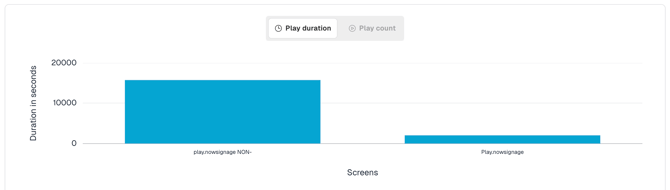
- Play Duration by Screen
-
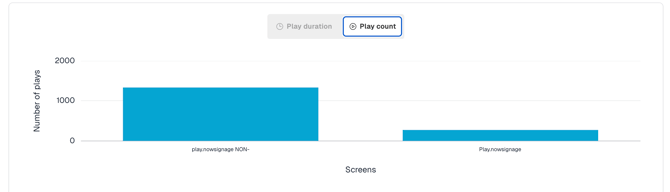
Play Count by Screen
Screens Table

For each screen, you can view:
-
Screen name and location
-
Number of assets played
-
Total play count
-
Total duration
Note: All table interactions match those available in the Assets view.
-
Single Asset View Reporting
Clicking an asset name opens a detailed breakdown for that asset.
-
What You Can See
-
Total plays and duration across all screens
-
Play count per screen (bar chart)
-
Play duration per screen (bar chart)
A dedicated table lists only the screens where the asset played, with full sorting and filtering controls.
-
Single Screen View Reporting
Clicking a screen name shows everything that played on that screen.
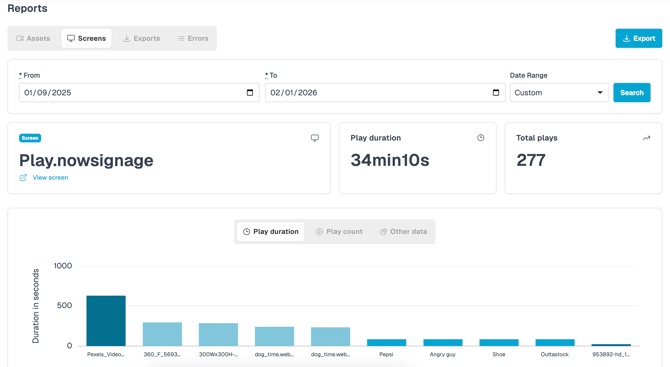
Included Insights
-
Total play duration and total plays
-
Asset-level play duration and play count
-
Asset type breakdown (pie and donut charts)
The table view displays each asset played on the screen, including duration, play count, and total time.
-
Summary
-
Proof of Play gives you:
-
-
Confidence that content played as scheduled
-
Clear reporting across assets and screens
-
Interactive charts and exportable visuals
-
A consistent, auditable view of playback activity
By combining high-level summaries with detailed drill-downs, Proof of Play helps you demonstrate value, verify campaigns, and optimise your digital signage network with confidence.
-
Important Usage Notes
To ensure accurate and meaningful reporting:
-
Device time must be correct – timestamps are based on the device’s local clock
- Project and screen codec configuration is accurate – based on hardware
-
Duplicate asset names should be avoided – identical names and durations cannot be distinguished
-
Replacing content overwrites historical data for that asset
-
Deleted assets remain visible in reports, marked as deleted
-
Proof of Play confirms playback on the device, not whether a physical screen was powered on
-
Data for the current day may be incomplete until all devices have uploaded