
Overview
The Playlist area in NowSignage has been updated with a new Table View, designed to make managing playlists faster, clearer, and more scalable.
This update is especially useful for customers working with large playlists or running targeted campaigns across multiple screens.
CMS Release: January 2026
App Update Required: No
Available on the following NowSignage platforms:
- EU (Global)
- ME (Middle East)
-
What’s New
-
Unified table-based playlist interface
-
Advanced filtering, resizing, and column controls
-
Include and Exclude Targeted Tag logic
-
Mass edit and mass delete tools with progress tracking
-
Playlist-specific default image durations
-
Playlist asset limits
-
Asset locking with role-based permissions
-
Improved asset preview with resolution and format details
-
This guide explains how to use these new features step by step.
Table of Contents:
-
Using the Playlist Table View
Playlists now use a modern table layout, consistent with other areas of NowSignage such as Screens, Schedules, and Content.
Each row represents an item in your playlist, with columns showing key information such as asset type, duration, tags, and scheduling.

-
- # number: shows the play order of each item in the playlist.
- Thumbnail: Displays a preview of the content asset
- Name: Name of asset
- Asset Type: e.g, Video, Image, YouTube, Webpage
- Duration: Set asset duration time
- Include Targeted Tag: Displays any added tags
- Exclude Targeted Tag: Displays any excluded tags
- Settings: Highlights any shown from-to, tagged and locked items in the playlist.
Customising the Table Layout
You can personalise the table to suit how you work:
-
Resize columns by dragging the edges of column headers
-
Reorder columns by dragging column headers left or right
-
Show or hide columns to focus on the information that matters most
Your layout preferences are saved automatically and will be applied every time you return to the playlist.
-
Filtering and Finding Playlist Items
The new Table View makes it easy to locate specific content, even in very large playlists.
You can filter playlist items by:
-
Asset name – type to search instantly
-
Asset type – images, videos, webpages, IPTV, and more
-
Targeted Tags – identify which assets belong to specific campaigns
Filters can be combined. For example, you can show only image assets that use a specific tag.
Note: When a filter is active, a notification (blue dot) will appear to indicate that filtering is currently applied. - Refreshing the page will clear all active filters and return the table to its default view.

Playlist Order:
This column is the playlist order (position) control.
What it is
-
The # column shows the play order of each item in the playlist.
-
The numbered rows (1, 2, 3, etc.) indicate the exact sequence in which content will play.
What it does
-
The six-dot handle next to each number allows you to reorder playlist items using drag and drop.
-
Click and hold the handle, then drag the item up or down to change its position in the playlist.
-
The playlist updates automatically to reflect the new order.
Important note
-
Reordering is disabled when filters are applied to the playlist table.
-
To reorder content, clear any active filters so the full playlist order is visible.
This ensures that items are always reordered accurately within the complete playlist, rather than within a filtered subset.
-
Previewing Assets in a Playlist
You can preview image and video assets directly from the playlist table.
To preview an asset:
-
Hover over the asset thumbnail
-
Click to enlarge the preview
The preview displays useful information such as:
-
Image resolution - Ideal for validating that your content meets our recommended
-
File format
-
Orientation (Landscape or Portrait)
This helps confirm content suitability before it plays on screen.
-
Adding Content to a Playlist
Faster Media Selection
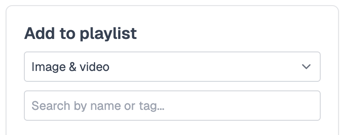
Images and videos are now grouped together under a single Media option when adding content. This makes it quicker to add mixed media to a playlist.
Quick Add and Multi-Select
You can add content in several efficient ways:
-
Hover over an asset and click the + Add button
-
Click asset thumbnails to select multiple items and add them in one action using the + Add Selection button
After selecting assets, you’ll be taken to the setup screen where you can:
-
Set durations
-
Apply Shown From-Remove schedules
-
Add Targeted Tags
Click Add to playlist to complete the process.
-
Using Targeted Tags (Include and Exclude)
Targeted Tags control where content plays.
When adding or editing a playlist item, you can optionally apply targeted tags using one of two logic types.
How Tag Logic Works
Untagged content
-
Plays on all screens assigned to the playlist
Include (default)
-
Plays only on screens that have matching tags
Exclude (new)
-
Plays on all screens except those with matching tags
Example
If a campaign should run everywhere except a small number of locations:
-
Tag the screens you want to exclude
-
Set the asset’s tag logic to Exclude
-
Add the excluded screen tags to the asset
The asset will play on all other screens, without needing duplicate playlists.
Important Notes
-
An asset can use either Include or Exclude tags, not both
-
To switch tag logic, all existing tags must be removed first
Viewing Tags in the Playlist Table
Tag usage is clearly visible within the table:
-
Hover over the tag icon to view included and excluded tags
-
Use the Included Tags and Excluded Tags columns to view and filter tagging across the playlist
This makes it easy to review and audit campaigns at a glance.
-
Managing Multiple Playlist Items (Mass Management)
For large playlists, mass management tools allow you to update multiple items at once.
Selecting Items
-
Use the checkboxes on the left of each row
-
Or click Select All to choose the entire playlist
Once items are selected, mass management options become available.
Mass Delete
-
Remove multiple playlist items in one action
-
A confirmation screen lists all selected items before deletion
Mass Edit Options
Mass Edit allows you to update several settings at the same time. Only the fields you change will be applied.
Available options include:
Duration
-
Applies to images and other static content
-
Video durations are not affected
Start and End Dates
-
Apply scheduling to multiple items at once
-
Use Clear Values to remove existing schedules
Targeted Tags (Override)
-
Replaces all existing tags on selected items
-
Allows switching between Include and Exclude logic
-
If enabled and left empty, all tags will be removed
A progress bar shows update status, followed by a summary of results.
Further Reading: Mass Management Actions: knowledgebase.nowsignage.com/nowsignage-cms-mass-management-actions
-
Advanced Playlist Settings
Click the pencil icon at the top of a playlist to access advanced playlist-level controls.

Default Image Duration
-
Set a default duration for images added to this playlist
-
Overrides the global default of 15 seconds
-
Useful when adding multiple images with the same timing
Playlist Asset Limit
-
Set a maximum number of items allowed in the playlist
-
Once the limit is reached, no additional content can be added
Locking Playlist Assets
Assets can be locked to prevent accidental editing or deletion.
-
Locked assets display a lock icon
-
Only authorised users can unlock or modify them
This is useful for protecting approved or critical content.
-
User Roles and Playlist Permissions
Access to some playlist features depends on your user role within NowSignage.
Roles with Full Playlist Access
The following roles typically have full control over playlist features:
-
Owner
-
Project Manager
-
Content Manager
These roles can:
-
Edit playlists
-
Use mass edit and mass delete tools
-
Set default image durations
-
Apply playlist asset limits
-
Lock and unlock playlist items
If an option is not visible, it means the role does not include permission for that feature.
Custom Roles and Sub-Permissions
Account Owners can create custom roles with fine-grained control over playlist permissions.
Sub-permissions can be enabled or disabled for features such as:
-
Asset locking
-
Playlist asset limits
-
Default image durations
For more information on Custom Roles; knowledgebase.nowsignage.com/how-to-create-a-custom-role
Missing a Feature?
If you can’t see a playlist feature:
-
You may be using a custom role
-
The required sub-permission may not be enabled
Contact your Account Owner if you believe additional access is required.