
Mass Management Guide
Version: 1.0
CMS Release: Dec 2025
App Update Required: No
Available on the following NowSignage platforms:
- EU (Global)
- ME (Middle East)
Version 1.1
CMS Release: May 2026
This release improves CMS efficiency for managing large screen deployments by reducing manual setup tasks. Administrators can now apply timezone settings to multiple screens at once through Mass Management and choose a destination folder when creating multiple screens, allowing screens to be organised during creation rather than moved afterwards. These enhancements streamline onboarding, improve consistency, and simplify large-scale screen administration without changing existing workflows.
Table of Contents:
1. Overview
Mass Management allows you to manage multiple Screens, Playlists, Schedules, and Assets at once, reducing time spent editing or deleting items individually.
Bulk actions are permission-based. - Users with full access (Owner, Project Manager) can perform large-scale updates such as applying settings, activating widgets, or deleting multiple items at once.
2. Updated UI – Where to Find Mass Actions
- The Actions button has moved from the top bar into the table toolbar, next to Table Settings.
This is consistent across:
-
Screens
-
Playlists
-
Schedules
-
Assets
This update keeps all table-related tools in one place.
Inside the Actions menu, you’ll also find Mass Actions History.
3. When Mass Actions Appear / How To Access
- Mass management options become available after you select one or more screens in the list.
Once screens are selected, actions include:
-
Delete selected
-
Move Selected to Folder
-
Screens-specific actions (Apply Settings, Add Widgets, etc.)
⚠️ Available options vary by:
-
Resource type (Screens, Playlists, etc.)
-
User role/permissions
4. Available Mass Management Actions (Summary)
- Across different resources, mass management includes:
-
Mass Deletion
-
Move Selected to Folder
-
Apply Settings (Screens only)
-
Add Widgets (Screens only)
-
Custom Attributes (Screens only)
-
Apply Codec (Screens only; ⚠️ permissions required)
-
Apply Schedules (Screens only)
-
Activate Licences (Screens only)
-
⚠️ WARNING: Mass Deletion Actions: Although safeguards are in place to help prevent accidental deletion, such as deleting screens with licences applied, any mass management deletion action is permanent and cannot be undone.
The following sections describe these actions in detail.
5. General Mass Actions (All Resources)
5.1 Mass Deletion

Available for screens, playlists, Schedules, and Assets.
When triggered:
-
A confirmation modal lists selected items.
-
Deletion progress appears as a notification.
-
Items lock during processing.
-
Only one deletion per resource runs at a time.
-
Items that cannot be deleted appear in a “cannot delete” modal with reasons.
5.2 Move Selected to Folder

Move multiple items into a folder or back to the root directory.
Supports:
-
Screens
-
Playlists
-
Schedules
-
Assets
6. Screens-Specific Mass Actions
- Screens have additional bulk-management tools.
6.1 Mass Apply Schedule

Action: Replaces the previous “schedule multiple screens” workflow.
Allows you to apply or queue a schedule to many screens simultaneously.
6.2 Apply Settings
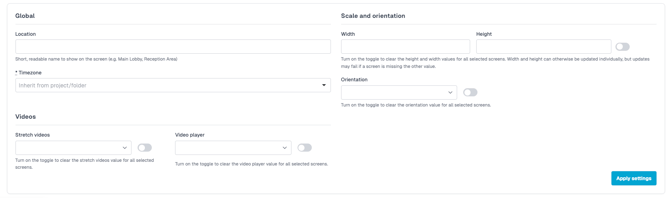
Action: Update multiple screens at once. Available settings include:
-
Location
-
Timezone
-
Width & Height
-
Orientation
-
Stretch videos
- Video player
⚠️ Important:
Only fields that contain values are updated.
⚠️ Warning: Activating the 'ON' toggle in any setting will remove previously applied settings for that option.
6.3 Add Custom Attributes
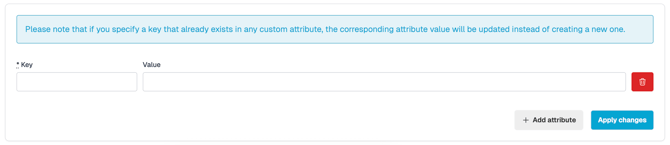
Action: Apply key/value metadata to screens, with support for bulk additions.
Features:
Attributes can be used for the following:
-
Table Columns:
Add attributes as table columns through Table Settings.
-
Filtering:
Once an attribute is added as a table column, it becomes available as a filter option.
-
CSV Export:
Export selected data points to CSV by choosing the desired attributes in Table Settings.
- ⚠️ Note: V1.0 - Custom attributes must currently be created each time a new key/value is required. Future versions will look to introduce support for selecting from existing attributes via a dropdown.
6.4 Add Widgets
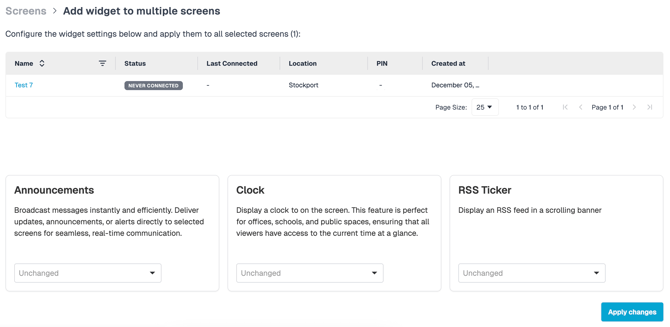
Action: Enable or disable widgets across multiple screens.
Each widget includes:
-
Enable
-
Disable
-
Unchanged
⚠️ Caution: Please review the widget compatibility guidelines in the knowledge base to confirm support before proceeding, particularly in environments with a mix of hardware and/or operating systems.
6.5 Mass Activate Licences (Activate selected)

Action: Activate and queue licences for any number of screens at once.
6.6 Mass Apply Codec

Action: Apply screen codec setting to multiple screens together.
⚠️ Permissions note:
Only Owner or Project Manager roles can perform mass codec updates.
7. Permissions & Roles
- Access to Mass Management is entirely permissions-based.
Platform Account user & Roles Summary
7.1 Standard Roles
|
Role |
Mass Management Access |
Mass Deletion |
Notes |
|---|---|---|---|
|
Owner |
Full Access |
Allowed |
Full access to all bulk actions |
|
Project Manager |
Full Access |
Allowed |
Same as Owner (no account-level settings) |
|
Content Manager |
No Access |
N/A |
Can edit content, not manage bulk actions |
|
Designer |
No Access |
N/A |
Design permissions only |
|
Viewer |
No Access |
N/A |
Read-only |
7.2 Custom Role Permissions
Mass Action Permissions Table
|
Role |
Can Perform |
Cannot Perform |
|---|---|---|
|
Screen Editor Only |
- Move Selected- Activate Licences- Add Custom Attributes- Apply Settings- Apply/Add Schedule |
- Mass Deletion - Add Widgets - Apply Codec |
|
Screen Editor + Widget Editor |
- All Screen Editor Only actions - Add Widgets in bulk |
- Mass Deletion – Apply Codec |
8. Mass Actions History
Located under:
Actions → Mass Actions History
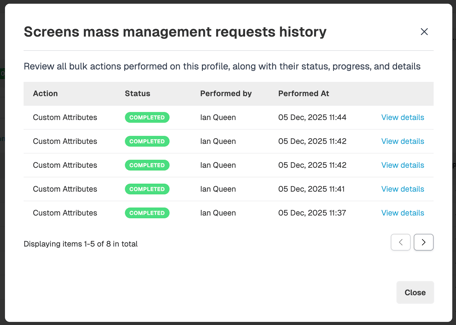
This section includes:
-
User who triggered the action
-
Number of items processed
-
Status (Pending, In Progress, Completed, Completed with Errors, Failed)
-
Timestamps
⚠️ Detailed logs can be viewed once an action is complete.
9. Important Usage Rules
-
Only one bulk operation per resource can run at a time. During this time
-
Table items are locked
-
Mass actions are greyed out
-
Progress notification appears
While an action is running:
-
-
Users must wait for the action to finish before starting another
10. Menu Board Mass Management Actions
For details on Menu Board Mass Management, please see our dedicated guide here.
If you need further support with mass management, please open a support ticket, our team is ready to assist you.