
Features of the Samsung Tizen Dual-Sided screen.
Samsung’s dual-sided display is designed for shopfront window environments and supports strong visual performance in both outward-facing and in-store settings.
Key features include the following:
- A dual display with screens on both sides
- Ultra-high brightness for visibility in varied lighting conditions
- A slim, contemporary design suited to display windows
Dual-display technology helps maintain picture integrity on the window-facing side, even in direct sunlight, while delivering clear messaging in-store for stronger customer engagement.
For more product information, visit:
https://www.samsung.com/uk/business/smart-signage/outdoor-signage/omn-ds-3000nit-24hr-ip5x-lh55omndsgbxen/
WARNING: Important Firmware Requirement
For Tizen 5.0 Double-Sided screen
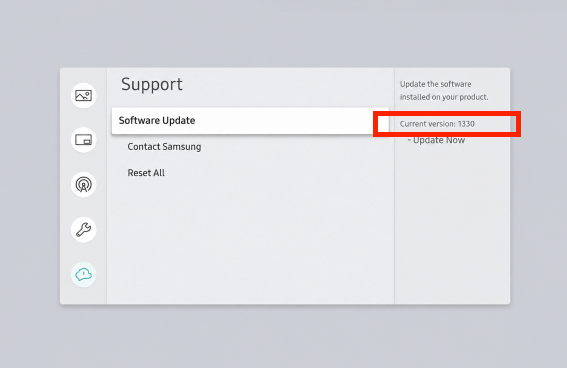
Firmware version 1330.1 is essential for a successful installation. If the display is not running this version, the NowSignage app will not install correctly on both sides of the screen.
Firmware versions:
T-MSMLWWC-1310.1 - does not allow installation on both sides of the display
T-MSMLWWC-1330.1 - required to install the NowSignage app on both sides
How to check the installed firmware version
Using the remote:
- Click the Settings (cog) icon.
- Scroll to and select Support.
- Open the software update page.
- Review the current firmware version shown on screen.
Before You Begin
This guide assumes the display is in its original factory state.
Initial Setup
Start the first-time setup:
- Go to System > Start Setup.
Then follow the on-screen instructions:
- Select your language.
- Choose Display Orientation:
- Set Auto Power Off to Off.
- Connect to your network.
- For Play via, choose URL Launcher.
⚠️ ⚠️ Please ensure you select "URL Launcher" rather than the built-in web browser, as using the web browser to enter the NowSignage app URL will result in an error
- When asked for Connect to RM Server, select Skip.
- Set your date and time.
Setting Date/Time via NTP (Recommended)
To prevent time drift:
On the remote, navigate to:
Menu > System > Time > NTP Settings
Configure:
- Network Time Protocol: Use
- Server URL: pool.ntp.org
- Time Zone: select your region
Installing the NowSignage application.
Method 1:
Installing NowSignage via the URL Launcher method.
- Press Home on the remote.
- Open URL Launcher
- Click 'Install Web App'
- Enter the NowSignage application URL:
https://cdn.nowsignage.com/tizen-4/5.3.41
Launching NowSignage
- Press the Home button on the remote.
- Select the NowSignage app from the menu options
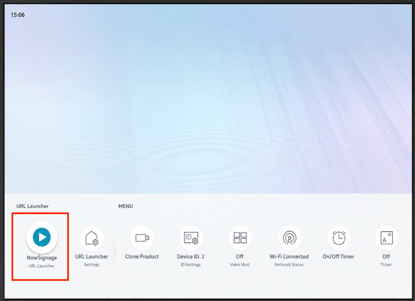
- Enter your Screen PIN (found in your NowSignage dashboard).
- The screen will activate and load your assigned content.
Method 2.
Installing NowSignage via USB.
- Insert a USB drive into your computer.
- Download the following files:
https://cdn.nowsignage.com/tizen-4/5.3.41/NowSignage.wgt
https://cdn.nowsignage.com/tizen-4/5.3.41/sssp_config.xml
Installation Steps:
- On the USB root, create a folder named: SSSP
- Copy both downloaded files into this folder.
- Insert the USB drive into the Samsung display.
- Press Home.
- Select URL Launcher (Settings) or App Management.
- Choose Install from USB device.
- Create a PIN.
- The app will then install directly from the USB, and open the app to the PIN entry screen.
How To Update The NowSignage Application on your Tizen Device
To upgrade the app on your device, you will first need to uninstall the app, and once done, install the latest by following the steps above. To uninstall, see below.
⚠️ Important: Before actioning the below steps, please deactivate the screen pin from the screen - knowledgebase.nowsignage.com/how-to-deactivate-a-screen-pin
This step is required to prevent the 'PIN already in use' message when re-adding the PIN after the app update.
- Press Home on the remote.
- Open App Management/URL Launcher (depending on Tizen model)
- Choose Uninstall. (NowSignage) and confirm the uninstall action
- Reopen App Management/URL Launcher
- Click 'Install Web App'
- Enter the NowSignage application URL (please ensure you enter the correct version for your Tizen model)
The web app will install and then automatically launch the NowSignage application to the PIN entry screen. Please ensure you have deactivated the screen PIN in advance, following the steps outlined above.