
Allow your audience to better plan their day, and keep them well informed on local weather. NowSignage has a variety of options to choose from when it comes to how you present information to viewers.
Compatible with:
Samsung Tizen
BrightSign
Windows
MAC
LG WebOS
Android
UPDATE: April 2026 - The weather widget has been refreshed with updated animated icons and improved scaling.

NOTE: App version 5.3.31 required for this update.
How to setup the Weather Widget:
Step 1 (Activate the app):
- Once logged into your NowSignage account begin by going to the 'Apps' area of the platform:
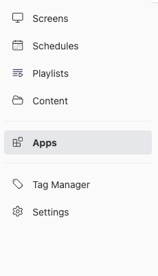
- When you have entered the apps area, scroll down to find the 'Weather Widget' app and activate this by clicking 'Install App'
Step 2 (Creating a widget):
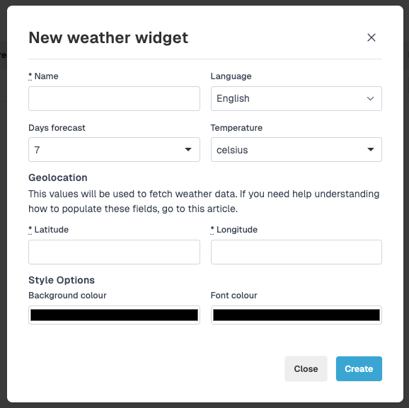
- Enter a name for your widget (e.g. Manchester Weather)
- Input your latitude and longitude coordinates, which can easily be found using Google, to specify the location for which you want to retrieve weather data.
- Customise the look by selecting a background colour, font colour, the number of forecast days and a language.
- When you are satisfied with your selections, simply click 'create' to finalise the widget.
Step 3 (Adding the widget to a playlist):
- Go into the 'playlists' tab and either create a new playlist or edit an existing one.
- Within the 'add to playlist' dropdown menu select 'weather widgets':
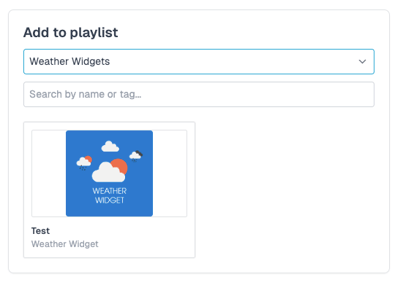
- Click 'add' on the widget you wish to add, then provide this with a duration and click 'add to playlist' once you are happy with this.
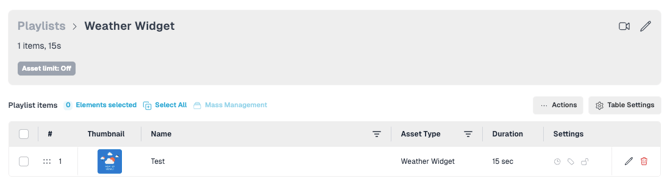
- The weather widget has been successfully added to your playlist:
General guidance:
The weather widget scales best within zone 3 of the template 3 layout, if you need assistance in creating a multi-zone layout please see guidance on Multi-zone Layouts