
⚠️ Compatibility Notes:
- The feature is only currently supported on LG WebOS 6.0 devices
- Compatibility is confirmed only for the LG WP600-B media player running webOS 6.0. Other models and webOS versions have not been tested.
Feature Release Date: November 2026.
-
App Version Required: v5.4.1
-
Overview
HDMI input in a layout zone lets you display content from a connected HDMI source, such as a PC or media player, alongside your NowSignage playlists. For example, you can show a live TV feed in one zone while menus and promotions play around it.
This is sometimes referred to as picture-in-picture (PIP). The feature described here is configured through NowSignage and is separate from the LG display’s own PIP/PBP settings.
⚠️Before You Begin
This feature must be enabled for your NowSignage account. If HDMI Input is unavailable, contact NowSignage Support to check whether your account has access.
The following configuration has been tested and confirmed:
| Item | Requirement |
|---|---|
| Display | Standard signage LCD display |
| Player | LG WP600-B media player running webOS 6.0 |
| HDMI connection | HDMI 1 |
| Source device | A device with HDMI output. Testing used an Android media player running NowSignage livestreams. |
| NowSignage CMS access | Permission to create playlists and edit layouts |
⚠️ Warning — playlist content
The HDMI Input item must be the only item in its playlist. Adding images, videos, apps or any other content to the same playlist causes the player to crash and the screen to freeze. Playlists assigned to other zones can contain content as normal.
⚠️ Important — HDMI connection
Use HDMI 1. HDMI 2 did not display a feed during testing and is not confirmed to work.
-
Setup Instructions
Step 1: Create the HDMI Playlist
- Log in to the NowSignage CMS and create/edit a playlist.
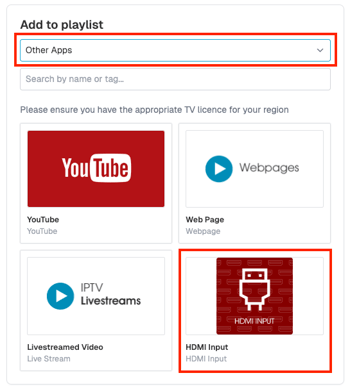
- From the content dropdown, select Other Apps, then HDMI Input.
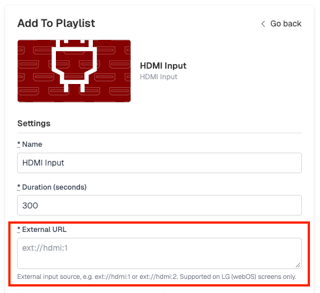
- In the External URL field, enter exactly:
ext://hdmi:1
- Save the playlist.
⚠️ The URL must use the format shown above, with no spaces or capital letters. Do not add any other content to this playlist.
Step 2: Add the Playlist to a Layout Zone
- Create a new layout or open an existing layout with the zones you need.
- Assign the HDMI playlist to the zone where you want the live feed to appear.
- Assign your usual playlists to the other zones.
- Publish the layout to the LG player.
Step 3: Connect the Source Device
- Turn on the source device and start the content you want to display.
- Connect its HDMI output to HDMI 1 on the LG device.
- Check that the live feed appears in the assigned zone and that the other zones continue playing their content.
-
Troubleshooting
| Problem | What to check | What to do |
|---|---|---|
| The HDMI zone is blank. | The external URL is incorrect. | Enter ext://hdmi:1 exactly, with no spaces or capital letters, then republish. |
| The HDMI zone is blank. | The source is connected to HDMI 2 or another port. | Move the cable to HDMI 1. |
| The HDMI zone is blank. | The source device is off, asleep or not sending a signal. | Turn on or wake the source device. Switch to HDMI 1 using the LG input controls to check that a picture is available, then return to the NowSignage player. |
| The HDMI zone is blank. | The HDMI cable is faulty or incompatible. | Try a different HDMI cable. |
| The screen freezes, or the player crashes. | The HDMI playlist contains other content. | Remove everything except the HDMI Input item from that playlist, then republish. |
-
Further Support
If the issue continues, contact NowSignage Support with:
- Your display model and LG media player model.
- The webOS version.
- A photo of the screen.
- Details of the troubleshooting steps you have tried.