
Inviting a user:
The following method below applies to any user with the 'Account Owner' or 'Project Manager' role. If you do not have the necessary permissions to do this, please contact your account owner.
**Important:**
If a user already has an account registered in the system for a different project, you will not be able to invite them, as the system will display a message stating, "username already exists."
To add this user to a new project, their existing account must first be deleted. Please advise the user to submit a support ticket to initiate the deletion of their user profile.
For security purposes, the request must be initiated by the user personally.
Alternatively, if the user’s account is active on another project, you can invite them using a different email address.
Before You Begin
You will need:
- Admin-level access to your NowSignage account
- At least one project already created that you can assign to the invited user(s)
How to Invite Users
Follow these steps to reach the invite form:
1. Click your account initials in the top-right corner of the screen.
2. Select My Account from the dropdown.
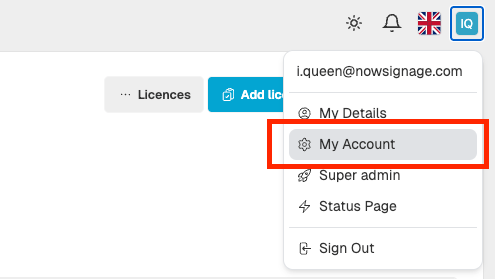
3. Navigate to Users & Roles.

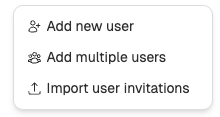
4. Click + Add new user. You will be presented with three options:
-
- Add new user — invite a single user.
- Add multiple users — invite several users at once.
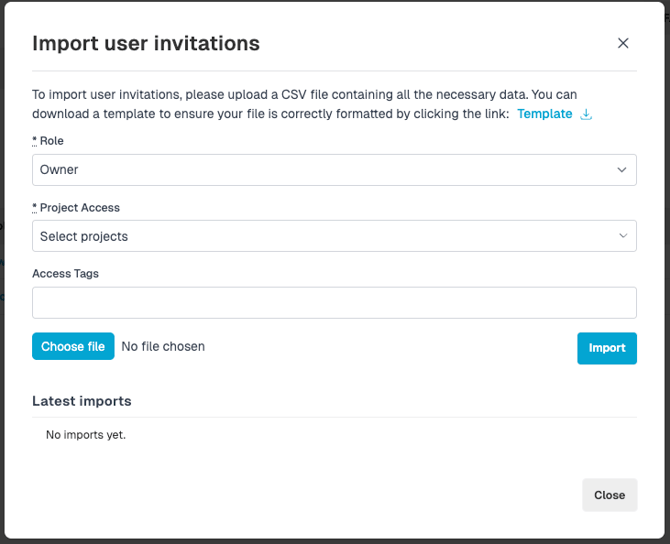
- Import user Invitations --- invite multiple users at once using a CSV upload
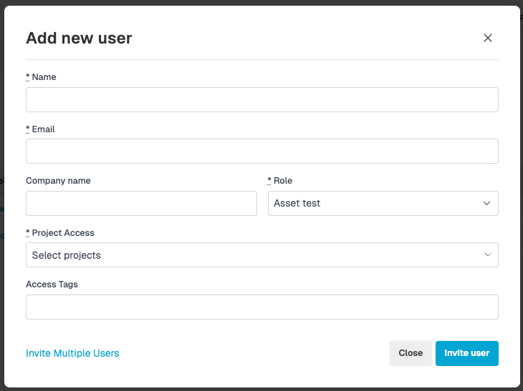
Select the relevant option and complete the form fields (see below). - Click Send Invite to dispatch the invitation.
Single User vs. Multiple Users
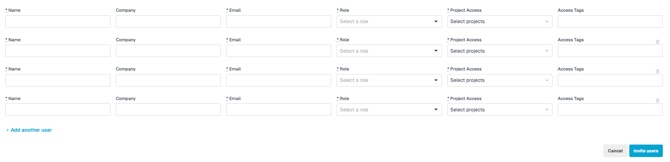
Both invite paths use the same fields and validation rules. The multiple-user form displays each invitee as a separate row. Use + Add another user to add more rows. All users in a bulk invite are sent their invitations simultaneously when you submit the form.
Required Fields
Invite multiple users: - Click + add another user to add additional.
Bulk CSV imports:
CSV import: Click **Import user invitations** to open a modal where admins can upload a formatted CSV file containing user details. A downloadable template is provided to ensure correct formatting, with **name** and **email** columns required.
This option allows you to invite multiple users in a single upload.
| Field | Description |
|---|---|
| Name | Full name of the user being invited. |
| Company | The organisation the user belongs to. |
| Email address the invitation will be sent to. | |
| Role | The permission level assigned to the user within the account. |
| Project Access | One or more projects the user will have access to. At least one project must be selected — the invite cannot be submitted without this. |
| Access Tags | Tag-based access restrictions applied at invite time. Available tags are filtered based on the selected project(s). |
Project Access
Project access is a mandatory part of the invite form. An invite cannot be submitted without at least one project selected per user, and an inline error will display if this field is left blank.
This ensures every invited user has the correct project access from the moment they accept their invitation, eliminating the need for any follow-up configuration.
Access Tags
Access Tags allow you to apply tag-based access restrictions to a user at the point of invite, for both single and bulk invites. The tags available to select are filtered dynamically based on the project(s) you have chosen for that user.
This means role, project scope, and tag-based restrictions can all be configured in a single step, without any post-invite follow-up required.
Troubleshooting:
Q. end user is not receiving the project invitation email.
A. If the email is not visible in the customer’s inbox, ask them to check their spam or junk folder. If it still cannot be found, please contact your internal IT team to confirm that the following address is not being blocked or filtered: **noreply@nowsignage.com**.