
Organising your screens and content using Folders is an efficient way to keep your workspace structured especially when working with a large network of screens or extensive media libraries. Folders allow you to group related screens or assets together, manage access, and streamline navigation throughout the CMS.
This article explains how to create screen folders, edit them, move screens in and out of folders, and manage access settings.
1. Creating Screen Folders
Screen folders allow you to group screens based on location, department, device type, or any structure that helps your organisation stay organised.
How to Create a New Screen Folder
-
In the CMS main view > Click the + Add New button (top-right of the CMS).
-
Select Add Folder.
-
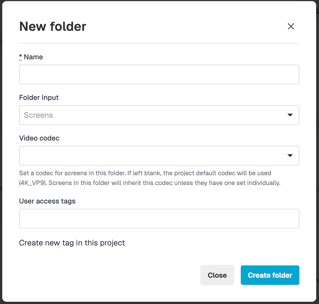
Enter a Folder Name.
-
(If applicable) Select the Video Codec for this folder.
(Please refer to the Codec Guidance article for more detail on codec selection. knowledgebase.nowsignage.com/multi-codec-support-within-projects)
-
Add any User Access Tags for users who should have permission to view or edit this folder.
-
Once all information is complete, click Create Folder.
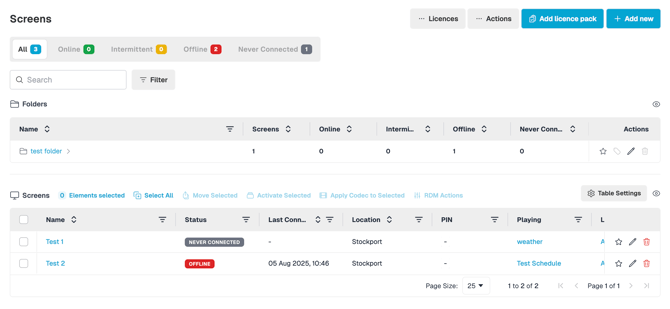
Your new folder will now appear under the Folders section above your main list of screens.
2. Moving Existing Screens Into a Folder
You can move individual screens or multiple screens into a folder at any time.
How to Move an Existing Screen Into a Folder
-
Tick the checkbox next to the screen you want to move.
-
Click Move Selected.
-
Choose the destination folder from the drop-down list.
-
Click Submit to confirm.

Important:
Once moved, the screen will no longer appear in the main list of screens. It will instead be displayed as part of the selected folder.
3. Add A Newly Created Screen To A Folder
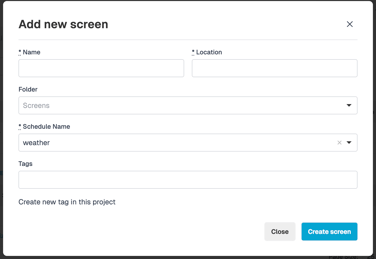
When creating a new screen, select the folder from the available options you wish to add the screen into.
4. Editing or Deleting Screen Folders
You may edit a folder at any time to update its settings or rename it.
How to Edit a Screen Folder
-
Click into the folder.
-
Click on the folder name at the top.
-
The edit options will appear, allowing you to update:
-
Folder Name (rename)
-
Video Codec
-
User Access Tags
How to Rename a Folder
-
Click the Edit (pen) icon
-
Enter the new folder name
-
Save your changes
4. Removing Screens From a Folder
If you need to return a screen to the main screen list:
How to Remove a Screen From a Folder
-
Tick the checkbox next to the screen you want to remove.
-
Click Move Selected.
-
Choose the Screen option (this moves it back to the main list).
-
Click Submit.
The screen will now appear again under your primary list of screens.
5. Moving existing content folders
If you need to move content from one folder to another:
How to move existing content in folders
-
Go to Content section in the CMS.
-
Open the folder containing the content you want to move (e.g., “Premium Product 2025”).
-
At the top of the screen, next to the folder name, click the drop-down arrow.
-
Select Move from the menu.
-
In the pop-up window, choose a new parent folder where you want to move the content.
-
Review your selection, then select Save to complete the action.
The content will now show in the new folder.
FAQ and Troubleshooting.
Can I change the video codec of a folder later?
Yes. Video codec settings can be updated at any time through the folder’s edit mode. - Please consider the codec hierarchy when selecting a folder-level codec.
Can I amend user access tags after the folder is created?
Yes. User access tags can be added or modified within the folder settings. N.B - Please ensure required access permission - knowledgebase.nowsignage.com/account-roles-and-permissions
Does moving a screen to a folder affect its playback or scheduling?
No. Folder placement only affects how screens are organised in the CMS. Playback, schedules, and layouts remain unchanged.