
NowSignage Digital Menu Boards (DMB's)
The Menu Boards platform within NowSignage allows QSRs operating across multiple locations to efficiently manage their menu board content. Using a master template to fix the layout and style, changes to products, pricing, and promotions can be made at a local level.
For global brands, NowSignage supports using a variation of multiple languages and currencies. Managing menu board content can either be done manually within the software or automatically through direct ePOS integrations, ensuring data is true to each location.
This guide explains how to set up, design, and manage digital menu boards using the NowSignage Menu Boards application.
It is intended for resellers and end users who want to deploy a standard, non-integrated* menu board approach without advanced configuration or bespoke development.
-
-
* 'Non-integrated' means that live POS pricing updates are managed manually via the application.
-
⚠️ Important Information Before You Begin
Before you begin, make sure the following prerequisites are in place:
-
The Menu Boards application is enabled on your NowSignage account.
-
If you do not have access, please contact your NowSignage representative or the Support team to request Menu Boards activation.
-
This guide covers the standard menu board feature set.
Digital menu boards can also be delivered with advanced, highly bespoke configurations.
For more complex requirements—such as custom fonts, tailored layouts, or POS integrations—please contact the Sales team or your Customer Success Manager.
You should also have:
-
Image files of your products saved to your device
-
Any background or template images saved to your device
-
A clear menu design that you want to implement
⚠️ Important App Information: Before setting up your menu boards, please check your hardware compatibility and ensure you have the most recent NowSignage app version installed. (currently v5.3.20)
At a high level, the setup process follows this order:
Step 1: Create a New Project
A dedicated project keeps all menu boards, templates, playlists, and schedules grouped together in one place, making them easier to manage.
This ensures your:
-
Menu boards
-
Templates
-
Playlists
-
Schedules
remain organised and simple to maintain.
Step 2: Install the Menu Boards App
Installing the Menu Boards app enables access to all menu board features, including product management, templates, locations, and menu board configuration.
-
Open your NowSignage project
-
Go to Apps in the left-hand menu
-
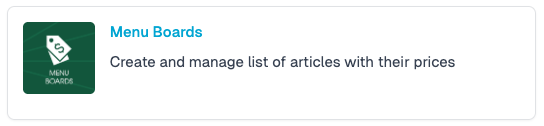
Locate Menu Boards
-
Click Install App
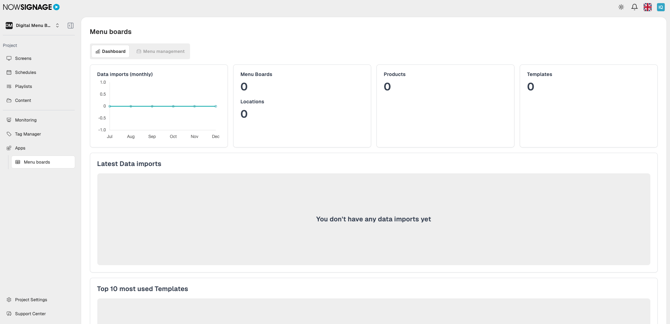
Once installed, open Menu Boards to access the main dashboard view.
The dashboard provides an overview of:
-
Menu boards in use
-
Products
-
Locations
-
Menu designs
-
POS import trends (if applicable)
Caution: These sections will be blank until a menu board is created.
Step 3: Configure Global Menu Board Settings
Global settings define how pricing, defaults, languages, and templates behave across all menu boards in your project.
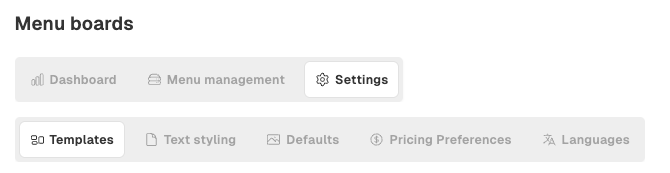
Go to Menu Boards → Settings (if this is not visible, please refresh the page)
3.1 Pricing Preferences (Required)
-
Open Pricing Preferences
-
Select your default currency
-
Choose your price format (for example, 0.99 or 99p)
-
Click Update
⚠️ Pricing preferences must be set before building menus to avoid issues later.

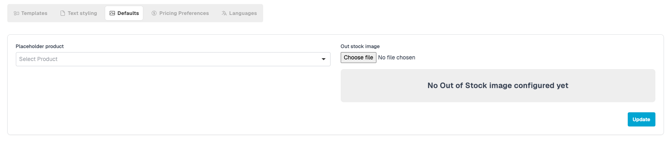
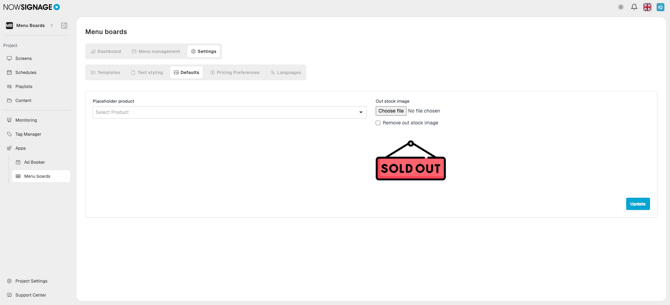
3.2 Defaults (Optional)
-
Upload an out-of-stock image/sticker.
-
Set a default fallback product
You can return to this section later once products have been created.
⬇️⬇️⬇️
3.3 Languages (Optional)
-
Confirm your default language
-
Add additional languages if managing a multilingual estate

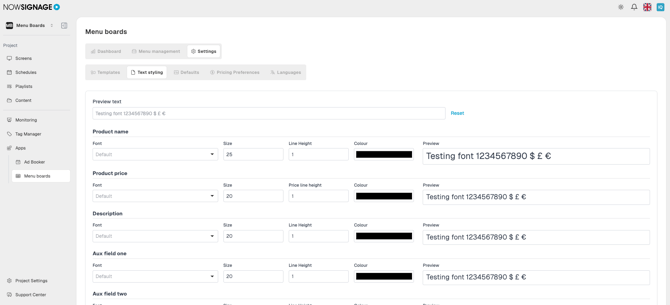
3.4 Templates & Text Styling
-
Templates will be configured later during the design stage
-
Text styling is controlled within templates using available font and sizing options
⚠️ Custom fonts can be added for an additional charge. If your required font is not listed, please speak to your NowSignage representative.
Step 4: Create Products and Product Groups
Products and product groups form the foundation of your menus and must be created before templates or menu boards can be populated.
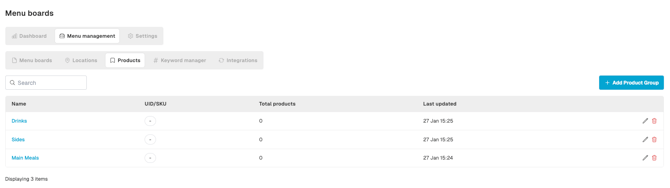
- Go to Menu Management → Products

4.1 Create Product Groups
Product groups help organise your menu (for example: Mains, Sides, Drinks).
-
Click + Add product group
-
Enter a group name
-
Click Create
- Repeat the steps to create additional product groups.
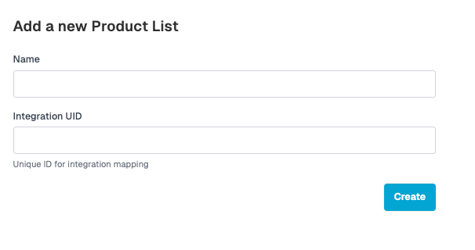
ℹ️ Integration UID is not required for manual (non-POS) setups.
4.2 Create Products
Once you have created your product groups, you can begin adding individual product items into each group. These products will form the building blocks of your menus and will be used later when assigning items to templates and menu boards.
-
Open a product group by clicking the name.
-
Click + Add Product
- Complete the product fields:
-
-
Name
-
Display Name ⚠️ (This is the name that will display on the menu board.)
-
Description & Auxiliary fields, e.g., calories, allergens, flavour, etc.
-
Default Price
-
Minimum / Maximum Price (optional) – This fixes the Min/Max price for a product.
-
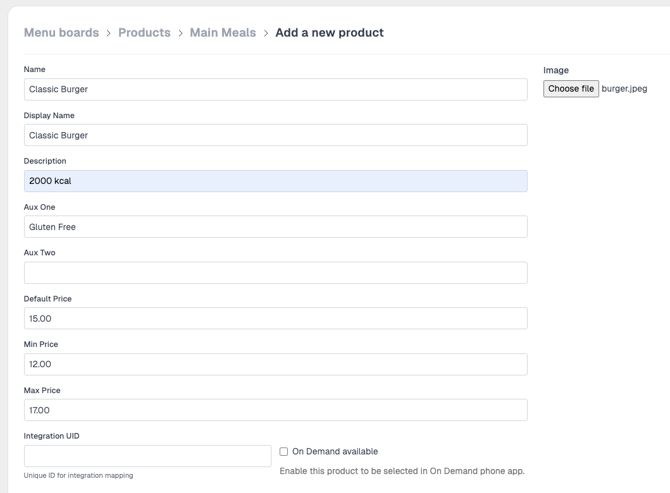
ℹ️ Integration UID is not required for manual (non-POS) setups.
- Click 'Create'

TIP: Repeat the steps above for each product category and product you require.
Step 5: Design Menu Templates
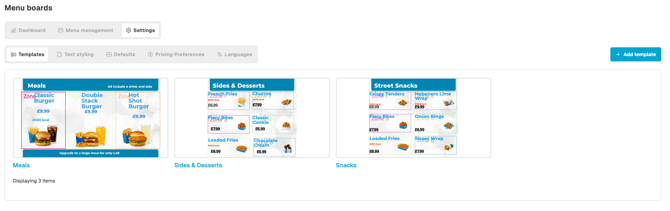
Templates control the layout, structure, and styling of your menu boards in the form of 'zones' and 'elements'.
The example template below shows how a template is structured into zones.
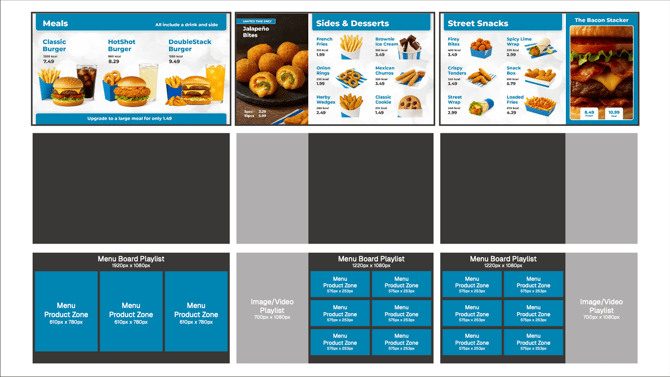
Go to Menu Boards → Settings → Templates →+ Add template
5.1 Create a New Template
-
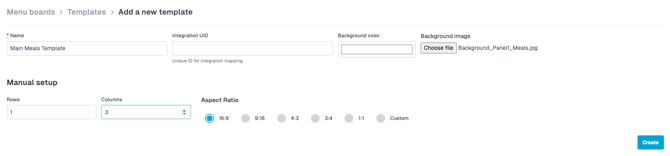
Click Add a new template
-
Name the template (for example: “Meals – Left Screen”)
-
Choose a background colour or background image
-
Set the number of rows and columns (this creates the zones within the menu)
-
Set a Aspect Ratio resolution (for example 16:9)
-
Select 'Custom' if you know the resolution of the screen you are using.
-
-
Click Create
 ⬇️⬇️⬇️⬇️
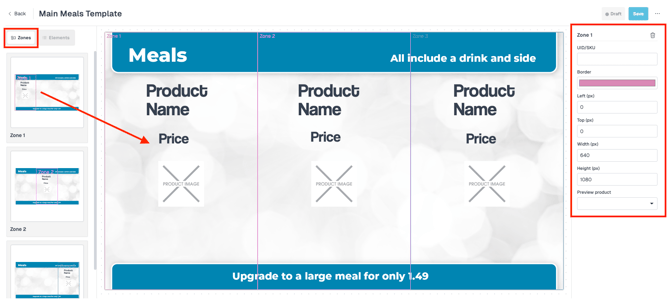
5.2 Configure Zones
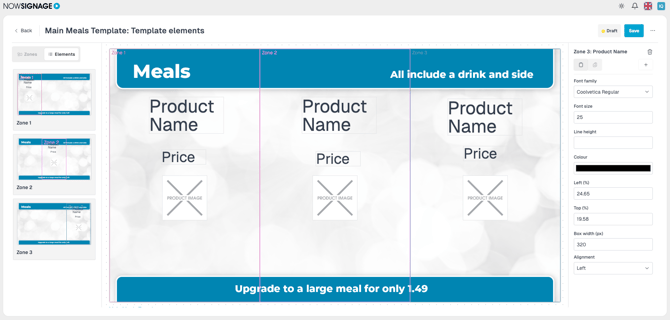
Once the template is created, you can now enter the specific information for each zone.
-
Open the Zones tab
-
Drag and resize zones, or enter exact width and height values
-
Click Save
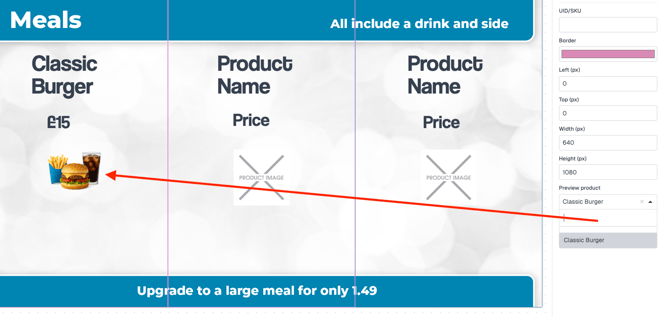
TIP: Select a preview product from the dropdown to see how it will appear on the template.
⚠️ Click save after every update - Changes will be lost if you leave the page without saving.
5.3 Add and Style Elements
-
Open the Elements tab
-
Review default elements (Name, Price, Image)
-
Click '+' Add element to include additional fields
Note: If you have added an 'Out of Stock' image, you will need to create an element for this to display.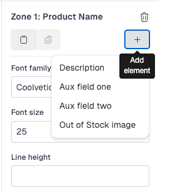
-
Adjust font, size, colour, and position
-
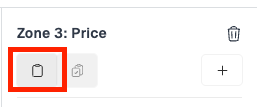
Use Copy Style to apply formatting across zones
-
Click Save
5.4 Duplicate Templates (Optional)
-
Click Add a new template
-
Upload a new background
-
Select an existing template to duplicate
-
Click Create
Step 6: Create Master Menu Boards
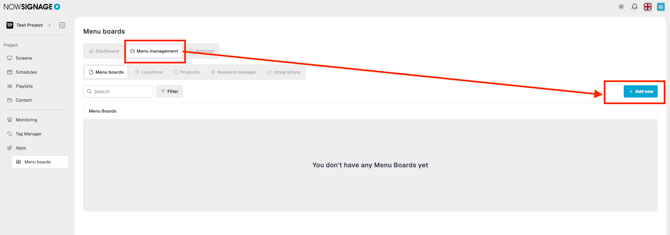
Master menu boards combine templates and products into reusable menus that can be shared across multiple locations.
Go to Menu Management → Menu Boards
6.1 Create a Menu Board
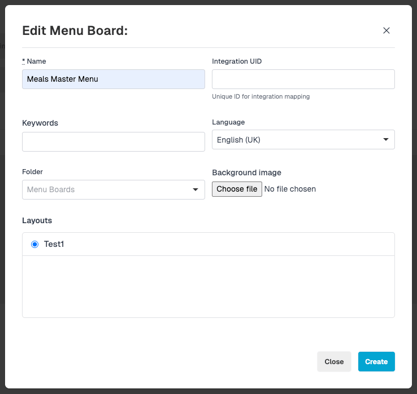
-
Click Add new menu board
-
Enter a name (for example: “Master Left Menu”)
-
Select the relevant template
-
Click Create
6.2 Assign Products to Zones
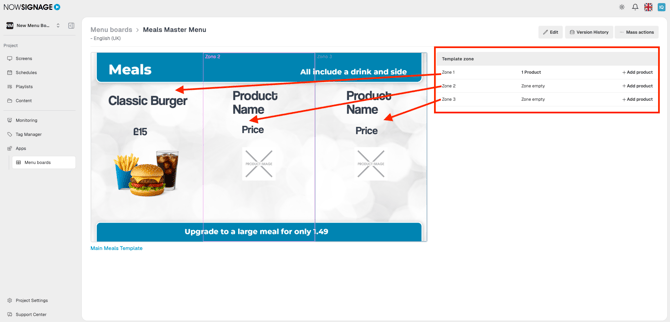
-
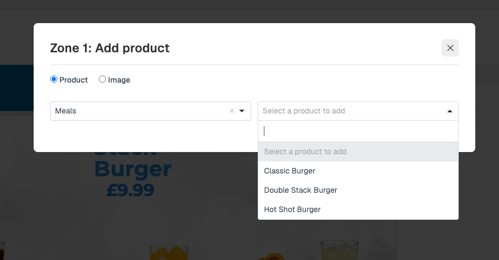
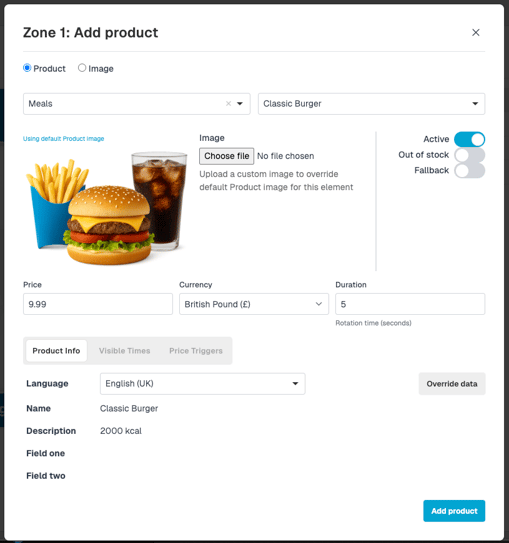
Add your products to each zone (+ Add product)
-
Add multiple products and set product rotation durations to scroll between items.
-
Add fallback products where required
-
Configure dayparting if needed
Step 7: Create Playlists
Playlists control how menu boards (and optional promotional content) are played back on screens.
Menu boards are displayed via playlists.
Go to Playlists Area from the left CMS options
7.1 Menu Board Playlists
-
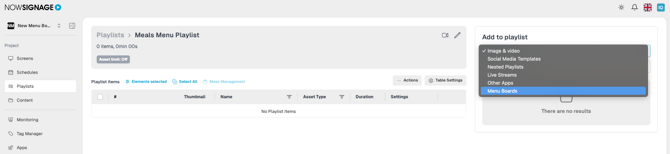
Create a new playlist
-
Change content type to Menu Boards
-
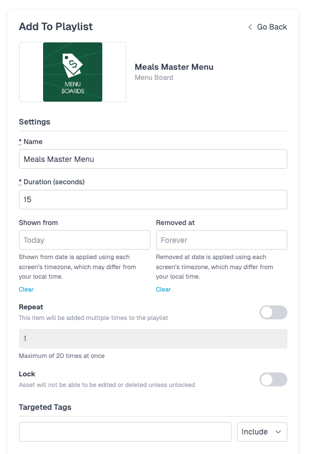
Add the menu board
-
Set a play duration Tip: base this on how you have configured your product rotations.
7.2 Promo Playlists (Optional)
-
Upload promotional assets
-
Create a playlist for each promo (e.g promo playlist 1)
-
Add content and set durations
Step 8: Create Layouts (Multi-Zone Screens)
Layouts allow multiple playlists—such as menus and promotions—to be displayed simultaneously on a single screen.
Go to Layouts
-
Click Add a layout
-
Name the layout
-
Set the number of zones
-
Assign playlists to zones
-
Adjust zone widths (percentages)
-
Click Create
Step 9: Schedule Content to Screens
Schedules determine when specific playlists or layouts appear on screens based on days and times.
9.1 Create a Schedule
-
Go to Schedules
-
Create a new schedule
-
Add a playlist or layout
-
Set days and times
9.2 Assign Schedules to Screens
-
Go to Screens
-
Select or create a screen
-
Assign the schedule
Step 10: Create Locations (Regional Variations)
Locations allow you to apply site-specific pricing, availability, and menu variations without affecting the master menu board.
-
Go to Menu Management → Locations
10.1 Create a Location
-
Click Add location
-
Enter a location name
-
Add the relevant screens
-
Click Submit
10.2 Add Menu Boards to a Location
-
Open the location
-
Click Add a menu board
-
Add all required menu boards
10.3 Customise Menu Boards by Location
Changes made here only affect this location.

-
Change product pricing
-
Mark products inactive (out of stock)
-
Use fallback products
-
Toggle Out of Stock overlays
Step 11 - Upload via CSV (Optional)
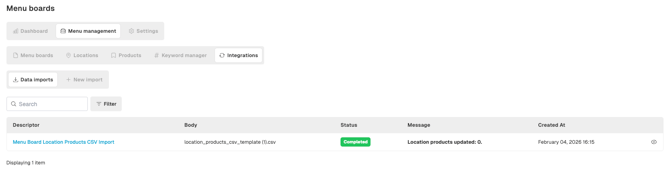
Upload a CSV to override product data per location. Processing happens in the background, and you can track progress in the Imports tab.
-
Go to Menu boards
-
Menu management
-
Integrations
- Click Download CSV template and enter the information.

Step 12 - (Optional) Mass Management For Menu Boards
For details on Menu Board Mass Management, please see our dedicated guide here.
Need Further Help?
For:
-
Menu Boards access requests
-
Advanced or bespoke configurations
-
POS integrations
-
Design best practices
Please contact NowSignage Support, your Customer Success Manager, or a member of the Sales team.