
Overview
NowSignage supports advanced timezone management designed for organisations operating screens across multiple regions.
Previously, projects used a single project-level timezone. While suitable for single-region networks, this could cause scheduling confusion and incorrect playback times for screens located in different timezones.
Enhanced Timezone Support introduces a hierarchical timezone model that allows each screen to operate according to its local time all within a single shared project.
Available on the following NowSignage platforms:
- EU (Global)
- ME (Middle East)
Release date: December 2025
- CMS update (no app update required)
Table Of Contents:
How Enhanced Timezone Support Works
Timezone control within a project is now available at three levels, applied in a clear hierarchy:
-
Project Timezone (default)
-
Folder Timezone (optional)
-
Screen Timezone (optional)
Each screen automatically applies the timezone based on this hierarchy, ensuring accurate scheduling, playback, and monitoring.
The Timezone Hierarchy
Timezone resolution follows the order below (lowest → highest priority).
1. Project Timezone

(lowest priority)
-
Configured in Project Settings
-
Acts as the default timezone for the entire project
-
Newly created screens inherit this timezone automatically
-
⚠️ Applies only when no folder or screen level timezone is defined
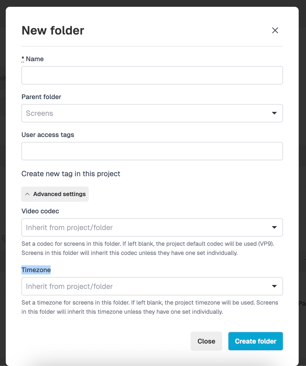
2. Folder Timezone
-
Configured in Folder → Advanced Settings
-
All screens within the folder inherit this timezone
-
Overrides the Project Timezone
-
⚠️ If a screen is moved out of the folder, it reverts to the Project Timezone unless a Screen Timezone is set
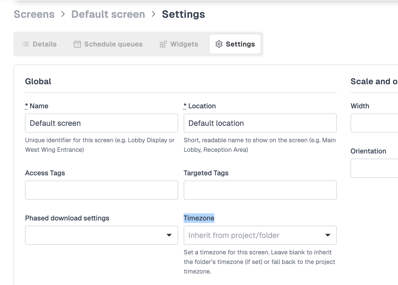
3. Screen Timezone
(highest priority)
-
Configured directly in the screen > settings panel
-
Overrides both Folder and project time zones
-
Ideal for screens in unique locations or where individual scheduling behaviour is required
Viewing a Screen’s Effective Timezone using Table Settings
Effective timezone:
The final timezone applied to a screen is determined by screen, folder, or project settings.
You can see which timezone a screen is actually using by enabling the Timezone column in the Screens dashboard.
Steps:
-
Open the Screens table
-
Use the column chooser
-
Enable Timezone
-
Drag and drop the column to customise your view
⚠️ More Info: Modern Table View For Screens
https://knowledgebase.nowsignage.com/ui-update-modern-table-view-for-screens
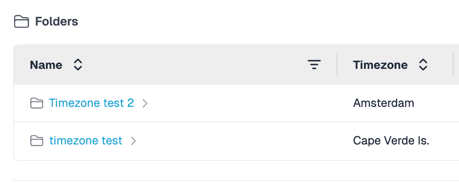
The column displays the effective timezone applied:
This provides clear visibility into how each screen’s time behaviour is determined.
How Timezones Affect Core Features
Screen Status: “Last Connected At”
-
Displayed using the screen’s effective timezone
-
Makes it easier to understand when a screen last checked in locally
Schedule Queue Behaviour
When scheduling content for a screen, all times are handled using that screen’s effective timezone (based on the Project → Folder → Screen hierarchy).
How Scheduling Works
-
Times entered in the CMS are interpreted as local time for the screen
-
A schedule triggers only when the screen itself reaches that time
-
This ensures scheduled changes happen at the correct local time, regardless of where the screen is located
Example:
A Project Manager in the UK schedules content for a screen in the US that uses the New York timezone. When the schedule is set for 9:00am, the content plays at 9:00am New York time, regardless of where the schedule was created. This removes the need for manual time conversions and ensures content runs at the correct local time for the screen.
Playlist Scheduling (Shown From / Removed At)
Playlist scheduling continues to be configured using the project timezone in the CMS.
Each screen then interprets those times according to its own effective timezone.
This allows:
-
A single playlist to be used across multiple timezones
-
Content to appear and be removed based on each screen’s local time
-
Global deployments without duplicating playlists or projects
Example:
A playlist item is configured with:
-
Shown From: 10:00
-
Removed At: 11:00
When assigned to screens in different timezones, each screen displays the content from 10:00–11:00 local time, regardless of geographic location.
Timezone Notice on Screen Scheduling Pages
When scheduling content for a screen that uses a timezone different from the project timezone, a Timezone Notice is displayed.
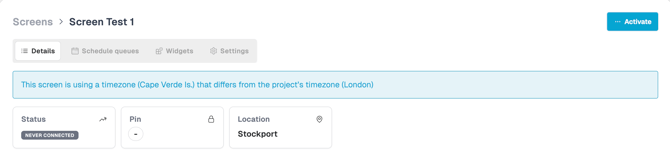
This helps:
-
Prevent accidental mis-scheduling
-
Make local-time behaviour clear while scheduling
⚠️ For Existing Projects
Projects created before Enhanced Timezone Support:
-
Continue using the Project Timezone by default
-
No timezone changes are applied automatically
-
Folder and screen timezones only take effect once explicitly set
Features Not Affected by Enhanced Timezone Support
Some platform features continue to use Coordinated Universal Time (UTC) or the device’s local hardware timezone and are not influenced by CMS timezone settings.
Features That Remain in UTC
-
Content Dashboard → Last Updated
-
Monitoring → Retrieve Analytics
-
RDM Logs
-
User Audit Logs
-
Screen mass deploy timestamps
-
Screen CSV exports
Features That Use the Device’s Local Hardware Timezone
-
Announcements
-
Overrides
-
Playlist / Layout timeslots within a schedule
These features rely on the media player’s own system clock for device-level accuracy.
Summary
Enhanced timezone support provides:
-
Accurate per-screen timezone behaviour
-
A clear hierarchy: Project → Folder → Screen
-
Reliable scheduling, playback, and monitoring across regions
-
Improved visibility and predictability for global networks
This ensures NowSignage scales cleanly for organisations operating across multiple timezones
For further assistance, please contact our Support, Customer Success, or Account Management teams.