
Minimum Chrome OS Specs:
- Dual-core processor or above (preference for quad-core processor or above)
- 4 GB of RAM or above (preferably 8 GB of RAM or above)
- 32 GB of storage or above (preference for 64 GB of storage or above)
Before you begin
• Your ChromeOS Flex device is enrolled in Google Admin Console
• You can see the device listed under Devices → Chrome → Devices
• You know which Organisational Unit (OU) the device belongs to
Step 0 — Enroll the ChromeOS Flex Device
If the device has not yet been enrolled, follow these steps:
- Boot the ChromeOS device
- Connect to Wi-Fi or Ethernet when prompted
- At the ChromeOS welcome screen, press:
Ctrl + Alt + E (Enterprise enrolment shortcut) - Sign in using your Google Admin / Workspace account
(Must have permission to enrol devices) - When prompted, select the Organisational Unit (OU) where the device should live
(Example: Signage, Kiosk Devices, Stores, etc.) - Click Enroll
- Once complete, the device will restart and appear in:
Devices → Chrome → Devices inside Google Admin Console
Note: Device policies will only apply after the device is successfully enrolled and placed in the correct OU.
Step 1 — Add NowSignage as a Kiosk App
Go to Devices → Chrome → Apps & Extensions
Click the Kiosks tab at the top
Select the Organisational Unit (OU) your device is enrolled in from the left panel
Click the yellow + button (bottom right) → Add by URL
Enter the URL:
https://play.nowsignage.com/
Click Save
Note: You will not see individual devices on this screen — that is expected. Apps assigned to an OU automatically apply to all devices in it.
Step 2 — Set NowSignage to Auto-Launch
After saving, NowSignage will appear in the app list on the left
At the top of the app list, locate the Auto-launch app row
Click the None dropdown next to Auto-launch app
Select NowSignage from the options
Click Save in the top right
Note: This ensures the device boots directly into NowSignage without any user interaction required.
Step 3 — Prevent Users from Signing In
Go to Devices → Chrome → Settings → Device tab
Select your OU from the left panel
Use the search bar to find Sign-in settings (Look for Sign-in restriction)
Set Sign-in settings to:
Never allow any user to sign in
Click Save
Note: This locks the device into kiosk mode and prevents anyone from logging in as a regular user.
Step 4 — Apply Settings to the Device
Reboot the ChromeOS Flex device
The device should boot directly into:
https://play.nowsignage.com/ automatically
To manually force a policy refresh (if needed):
Open Chrome on the device and navigate to:
chrome://policy
Then click Reload Policies
Troubleshooting
Settings not applying after reboot
Confirm the device is in the correct OU via
Devices → Chrome → Devices
Click the device and check the Organisational Unit field.
Move button greyed out in Devices list
The device is already in the selected OU — no action needed.
NowSignage not loading / blocked
Check if a URL blocklist policy is active.
Whitelist https://play.nowsignage.com/ under
Devices → Chrome → Settings → URL Blocking.
Note
- The Google account must be a business (Google Workspace) account
- The user must be an admin or have permissions to enroll and manage devices
- During setup, select Enterprise / Device enrolment when prompted
- Enrolment must be completed on a fresh device (Where possible). However, If the device has been signed into previously, perform a factory reset (Powerwash) before enrolling
Warning/Caveat - Booting your device in offline mode or rebooting an offline device (without a live, stable internet connection) will result in the NowSignage application being unable to boot up. This is a current device level restriction and will be addressed in a future update.
The result is the below image. To avoid this, please ensure that the device has a constant network connection when power cycling the hardware.
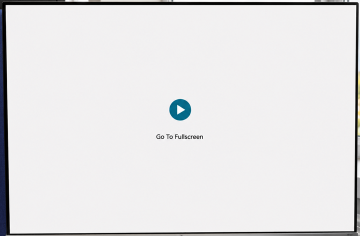
Please note, 'offline' playback mode is still supported through the NowSignage app if the network cuts out whilst the app is running, as the content is cached to the local storage of the device. The above issue only occurs when rebooting the hardware in offline mode.