
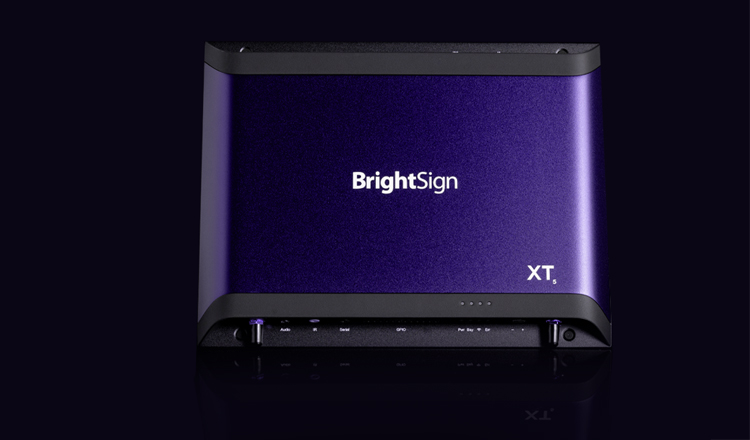
BrightSign Media Players Screen Mass Deploy Tool using the in-platform Mass Screen Deploy Tool.
Overview
The BrightSign Screen Mass Deploy feature enables a fully touch-free rollout of BrightSign media players. By uploading a CSV file that includes each player’s serial number, screen name, screen location, and schedule, the corresponding screens are automatically created within the NowSignage CMS.
Once the NowSignage app is installed on a BrightSign player, the device sends its serial number to our system, which then automatically links it to the correct screen configuration defined in your CSV.
⚠️ Important: This feature is compatible with the NowSignage BrightSign Series 5 app onwards only. Older BrightSign players are not currently supported for mass deploy.
⚠️ Before You Begin – Feature Enablement ⚠️
-
⚠️ Screen Mass Deploy is controlled by a feature flag and is not enabled by default.
To use this feature, please contact your NowSignage representative (Customer Success or Support) and request that Screen Mass Deploy be enabled on your account. Once enabled, the option will be available within your project settings.
-
⚠️ Mass screen deployment can only be actioned by Account Owners only
How to Use Screen Mass Deploy
Step 1: Access Screen Mass Deploy in Your Project
-
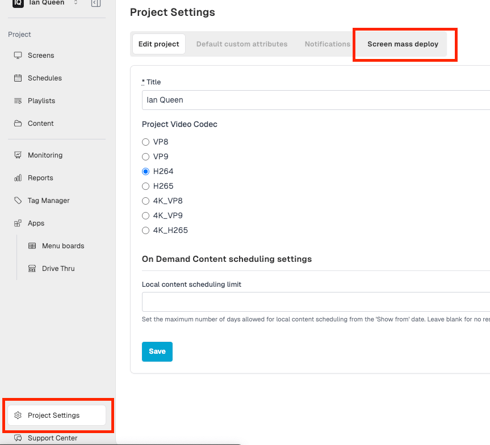
Navigate to the project where you want to create the screens.
-
Go to Settings.
-
Select Screen Mass Deploy.
-
Download the sample CSV template provided.
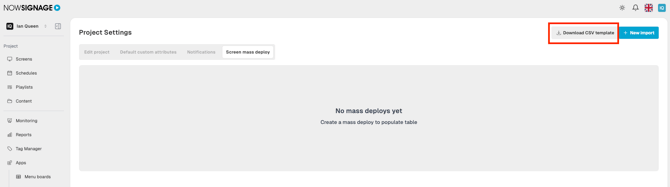
This template defines all available fields that can be used when creating screens.

Step 1: Create the spreadsheet CSV file
-
In Excel or Google Sheets create a new file
- Add the following header columns
CSV Column Definitions

-
Pin_code (mandatory)
This is the serial number of the BrightSign player you wish to link to the NowSignage CMS.
-
screen_name (mandatory)
The name of the screen.
-
location (mandatory)
The physical or logical location of the screen.
-
schedule_name (Optional)
Enter the full name of an existing schedule to automatically apply it to the screen.
-
scale_width (Optional)
Screen width in pixels (for example, 1920).
-
scale_height (Optional)
Screen height in pixels (for example, 1080).
-
orientation (Optional)
Supported values:
-
portrait
-
reverse_portrait
-
-
stretch_videos (Optional)
Enter yes or no to enable or disable video stretching.
-
access_tags: (Optional)
-
Do not include spaces between commas
-
Example: admin,region1,retail
- Separate multiple tags with comma
-
-
targeted_tags (Optional)
- Same formatting rules as Access Tag
Step 3: Download the File as CSV
Once your data is complete:
-
Click File → Download → CSV
-
Save the file to your computer
Step 4: Upload the CSV to Screen Mass Deploy
-
Return to the CMS.
-
In Screen Mass Deploy, click New Import.
-
Select your CSV file.
-
Enter a name for the import.
-
Click Create.
Step 5: Monitor Import Progress
-
The import will initially show a status of Processing.
-
Refresh the page as needed.
-
When complete, the status will change to Completed.
Step 6: Confirm Screen Creation
Once processing is complete:
-
All screens defined in the CSV will be created automatically.
-
The new screens will now appear within your project with the PIN being set as the serial number of the BrightSign player.
- Proceed with the PIN activation process to activate the screen - knowledgebase.nowsignage.com/how-to-activate-a-licence
Step 7: Disable Screen Mass Deploy When Finished (Recommended)
After completing your deployment, it is recommended to disable Screen Mass Deploy access if it is no longer required.
This helps:
-
Reduce the risk of accidental bulk imports
-
Maintain controlled access to screen creation
If you need to use Screen Mass Deploy again in the future, your NowSignage representative can re-enable it for you.
Best Practices
-
Ensure schedule names and tags exactly match existing values in the platform.
-
Disable the feature once bulk creation is complete.