
In this guide, we will delve into the various asset types that can be incorporated into a playlist.
- Nested Playlists
- IPTV Live Streams
- YouTube Videos
- Web Pages
- Live Stream Video
In the playlist editing screen, located in the top right corner, you will find a dropdown menu that allows you to select the type of asset you wish to add to your playlist.
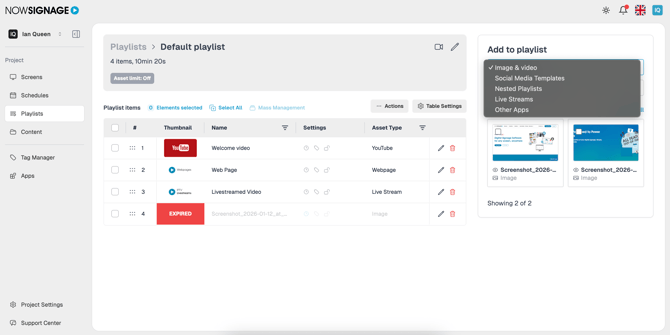
-
Nested Playlists
How to Add:
A Nested Playlist is a playlist that can be added inside another playlist. It helps you manage shared content across multiple screens more easily.
You can use nested playlists to show common content on all screens while still keeping screen-specific content separate. Any updates made to a nested playlist will automatically update everywhere it is used.
This allows you to update multiple playlists at once without needing to add or edit assets individually.
Steps to Add a Nested Playlist
-
Go to the Playlists tab in the left-hand menu.
-
Open the Add to playlist dropdown and select Nested Playlists.
-
Click the + Add button next to the playlist you want to include.
-
Click Add to playlist to confirm.
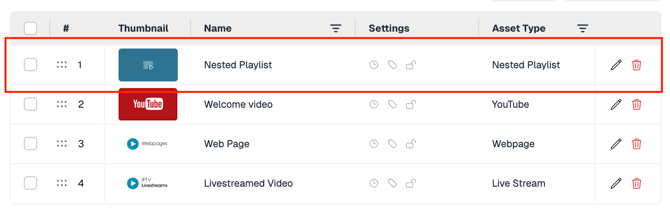
Note: You can reorder items in the playlist by dragging and dropping them into the desired position.
-
IPTV Live Streams
How to Add:
To add an IPTV live stream video to your playlist, simply select 'Live Streams' from the dropdown.
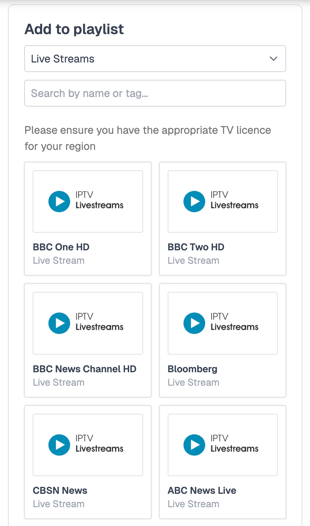
You will be presented with a list of available live streams. Once you identify the live stream you wish to display, simply click the 'Add' button next to your selected option.
The standard duration for the live stream is initially set to 300 seconds (5 minutes). However, you have the option to modify this duration to meet your specific requirements. Once you have selected your preferred duration, click 'Add to playlist' to promptly add it to your playlist.
⚠️ Warning: Please ensure you have the appropriate TV licence for your region
-
YouTube Videos
How to add:
To add a YouTube video to your playlist, simply select 'Other Apps' from the drop down where you will see an option for YouTube.
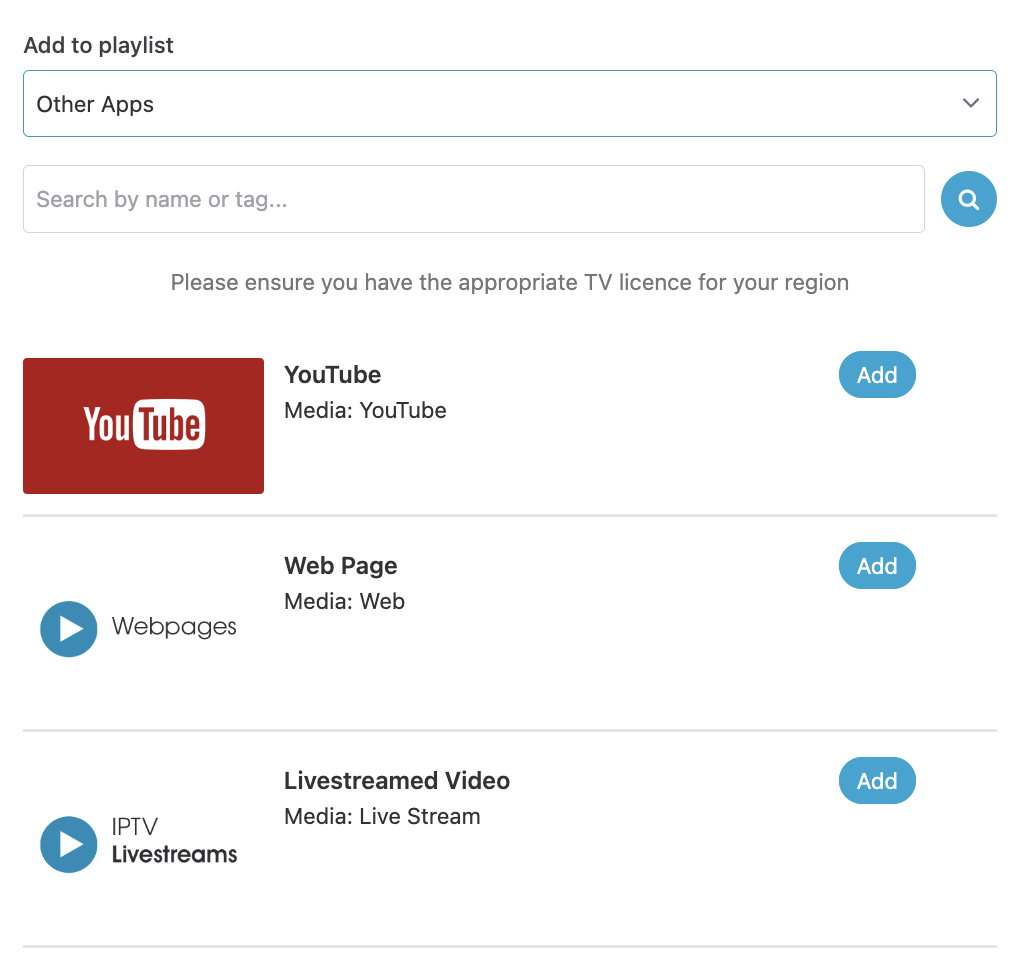
To incorporate a YouTube video into your playlist, click the 'Add' button next to the YouTube icon. Then, paste or enter the URL (not the share link) of the desired video in the External URL section. Finally, specify the duration for which you want the video to play in your playlist.
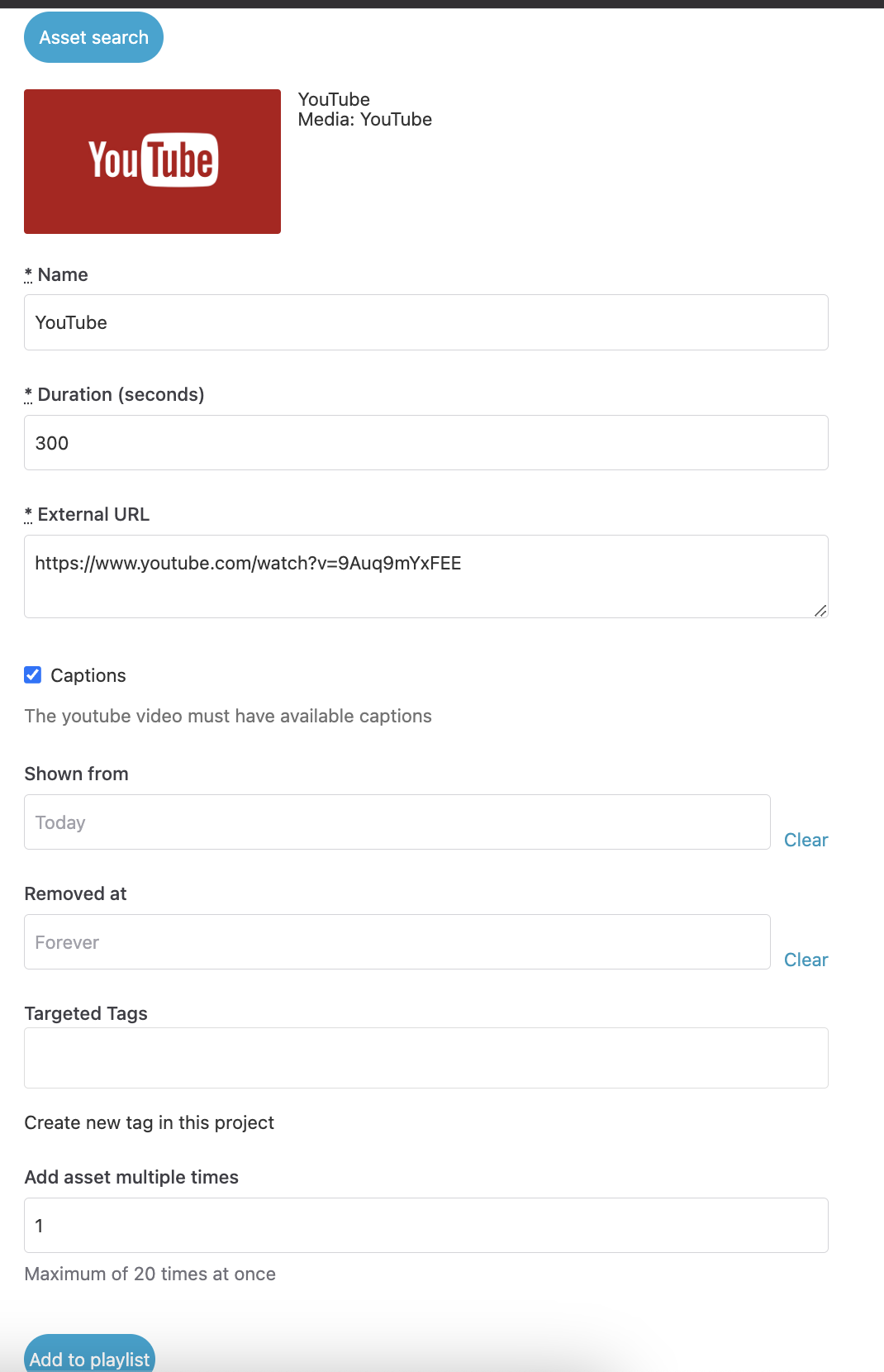
Optional - If the YouTube video has available subtitles click the captions tick box to enable these. (This feature is available on Android v3.0.2+ and all other app builds v0.6.0+)
Please note - Captions are not currently compatible with the BrightSign build of the NowSignage app.
Once you have finalised your selections, click 'Add to playlist' to instantly include the video. Please note that in the Preview window, the video will show the YouTube play button. This is only for preview purposes; once the playlist goes live, the video will autoplay on the device.
Please note - The duration setting does not automatically adjust to match the video's actual length; You must enter this information manually. For instance, if the YouTube video is 3 minutes long, you should input the precise duration in seconds (180 seconds) to ensure the video plays in its entirety.
Web Pages
To add a web page to your playlist, simply select 'Other Apps' from the drop down where you will see an option for web pages.
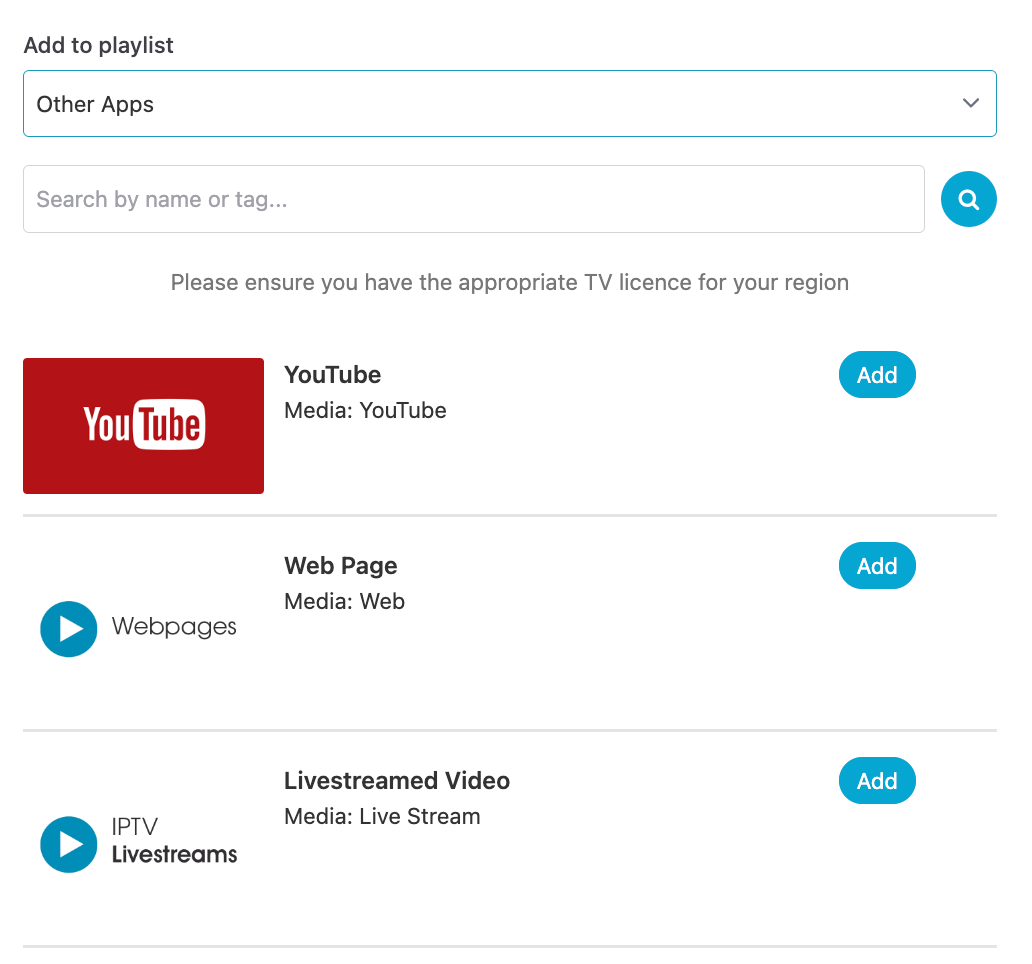
Now click 'Add' next to the Web Page icon, then simply paste or enter in the Web Page URL you wish to include in your playlist into the external URL section and enter in the duration you wish the Web Page to display for.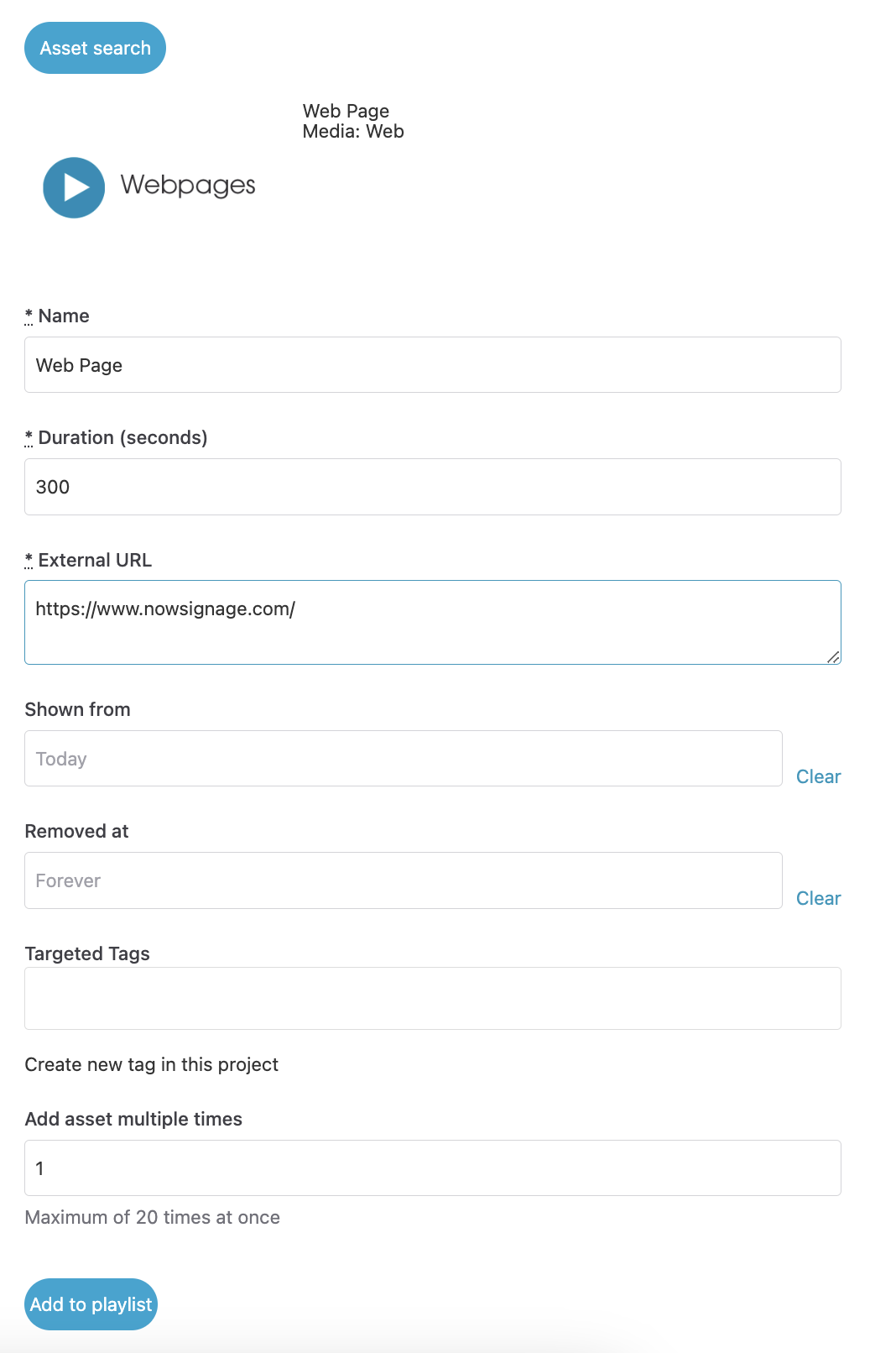
Once you are happy with this, click 'Add to playlist' and it will be added instantly.
Live Stream Video
To add a custom live stream to your playlist, simply select 'Other Apps' from the drop down where you will see an option for live stream video.
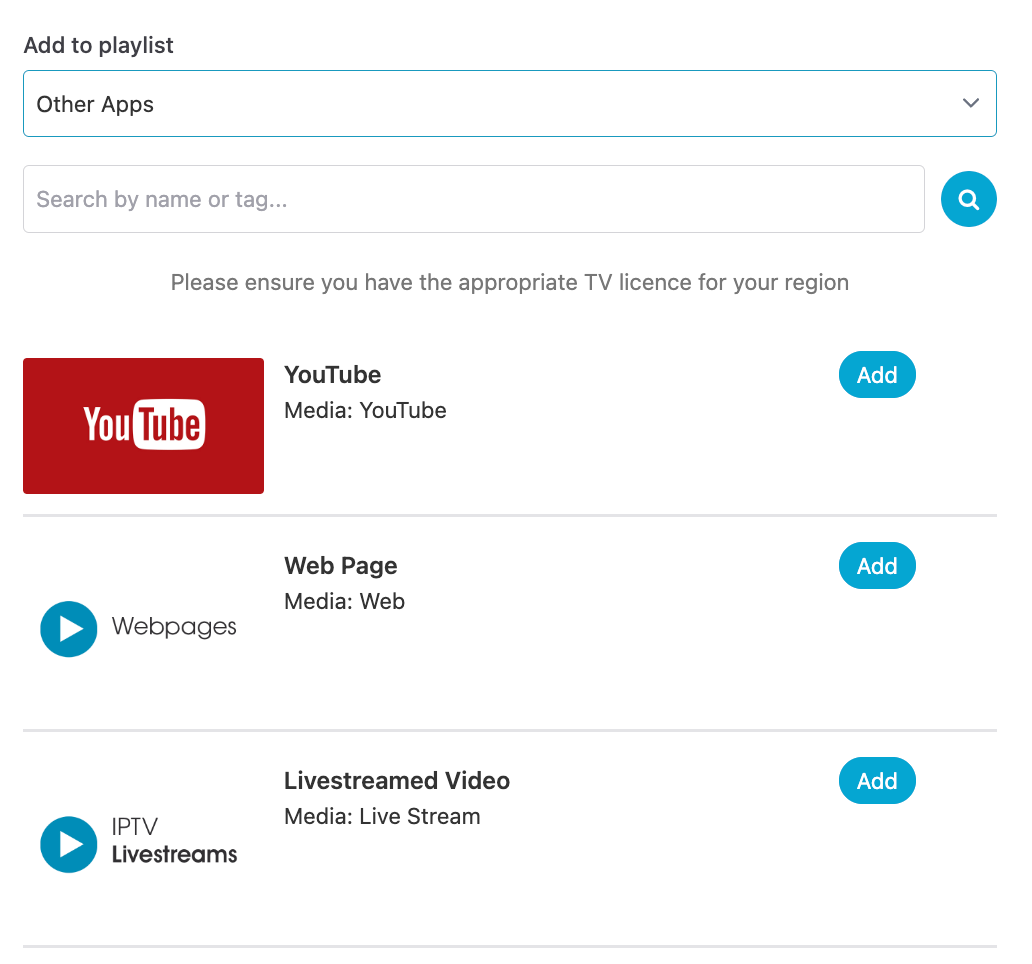 Now click 'Add' next to the Livestreamed Video icon, then simply paste or enter in the live stream URL you wish to include in your playlist into the External URL section and enter in the duration you wish the stream to play for.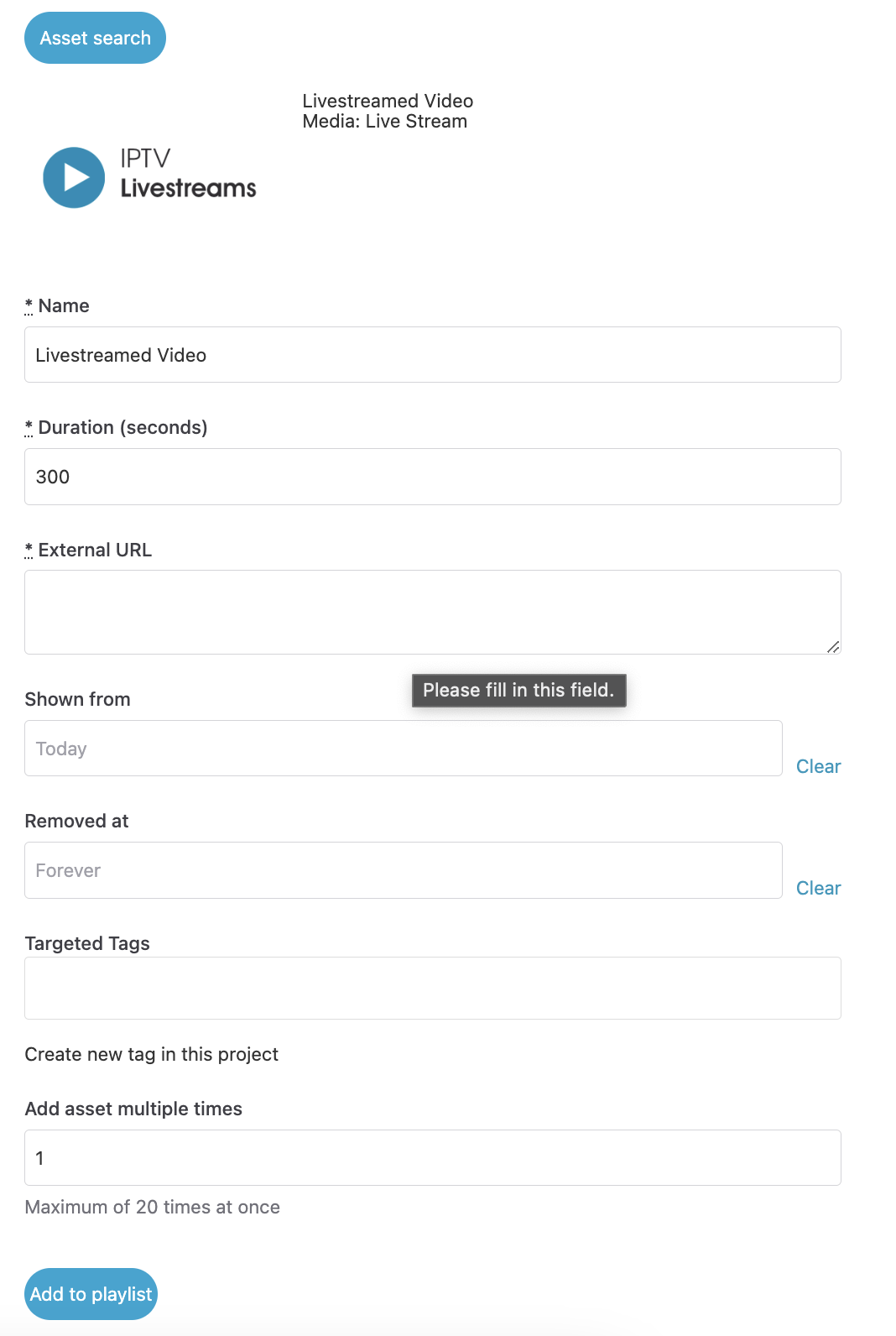
After confirming your selections, click 'Add to playlist' to seamlessly include the item in your playlist.
Please note - Currently, NowSignage exclusively supports the HLS (HTTP) streaming protocol. To integrate a live stream into our system, please provide a live stream URL in the .M3U8 format.
An alternate method for live streaming is using the YouTube feature (which supports publicly available live streams if hosted via YouTube).